Administrator Setup
Approve a local package version, then decide who can use which of its tools. Approval registers a version. It does not install software on anyone's computer and it does not enable tools automatically.
Walk through it
Importing a local package, reviewing its source and tool schemas, approving the version, then enabling tools and access.
YouTube All videosOr step through it below.
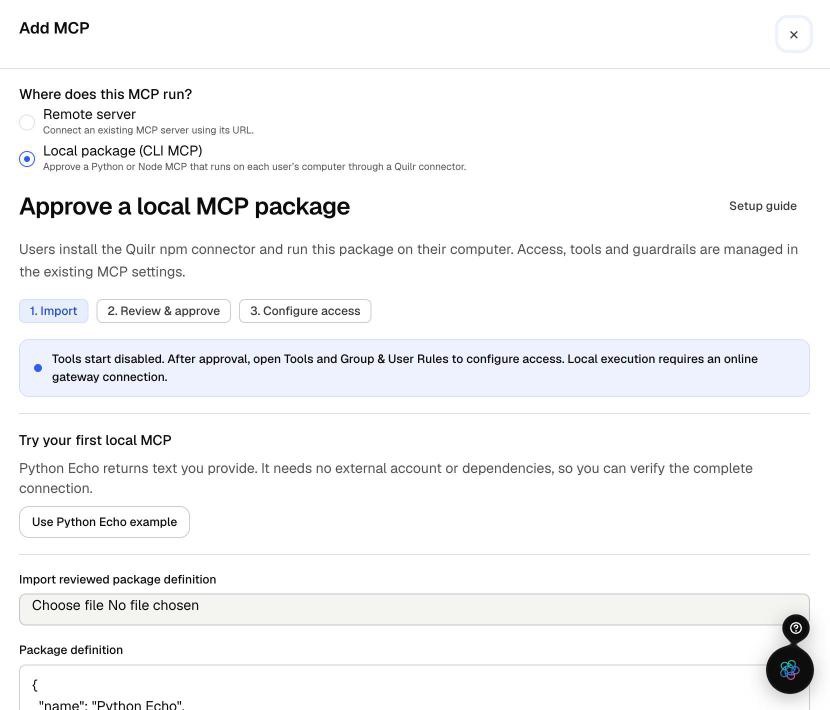
Choose Local package, then load the Python Echo example
In Settings -> AI Gateway -> MCP Gateway, select Add MCP server. Under 'Where does this MCP run?', choose Local package (CLI MCP). For a first test, select Use Python Echo example; it needs no external account or dependencies.
Note the banner: tools start disabled, and local execution needs an online gateway connection.
1. Add the package
- Open Settings -> AI Gateway -> MCP Gateway, then select Add MCP server.
- Under Where does this MCP run?, choose Local package (CLI MCP). The panel switches to Approve a local MCP package, a three-step flow: 1. Import, 2. Review & approve, 3. Configure access.
- For a first test, select Use Python Echo example. It returns text, and needs no external account and no third-party Python dependencies. For your own MCP, import or paste its JSON definition. See Build your own package.
If Local package (CLI MCP) is unavailable, your platform operator must enable the capability on your organization's gateway.
2. Review the package
Select Review package. The Review before approval summary lists:
- Name and Version
- Runtime and Entrypoint
- Source files - expand Inspect included source files to read them
- Dependency lockfile
- Provider sign-in destinations
- Local environment - the variable names the package asks for
- Declared tools
Review this the way you would review a dependency you are about to ship. The MCP's discovered tool names and schemas must match what is declared here.
Administrators approve environment variable names only. Actual secret values stay on the user's computer and are never stored in the package definition. Never paste secrets into a package definition or into a chat window.
3. Approve
Select Approve package.
The console states this plainly: approval makes the version available for access configuration, and it does not enable any tools or install anything on a user's computer. Nothing reaches a user until you complete step 4.
4. Configure tools and access
Open the new MCP's Settings -> Tools, enable only the intended tools, and save. Then configure:
- General - access controls
- Guardrails - the standard gateway guardrail flow
- Group & User Rules - scoped overrides
Precedence runs base settings first, then group overrides, then user overrides. Turning off a scoped rule restores inheritance; it does not create a denial.
Use the effective-settings preview for a real permitted user before you share setup instructions with anyone. Installation is only eligible when current membership, package status and effective access all permit it.
When Policy Engine is enabled
If your organization uses the Policy Engine, the published revision in Govern > Policy Engine > MCP Gateway controls live tool access, guardrails, confirmation and token-saving effects. See the Policy Engine overview.
In this mode the older per-MCP settings screens stay editable, but saving them does not change live behavior. The MCP settings screen tells you when this applies and links to MCP policies. To change what users can actually do: edit a policy draft, validate it, inspect its effect for the intended user and MCP, then publish.
Package approval and computer enrollment still use the screens described above.
5. Verify before you roll out
Confirm the whole path works before sharing instructions broadly:
- Have a permitted user complete the connect flow and call a tool.
- Open the MCP's Activity -> Tool calls and confirm the call appears for the correct user and tool.
- Disable the tool or deny access, and confirm the next call is blocked.
- Repeat with a second user on their own account. Never copy connector credentials between users or computers.
Adding more packages later
An administrator can add another permitted MCP without any user repeating client setup. Users pick up the new tools automatically. AI clients that do not refresh on their own may need their native MCP reconnect action, or a restart.
Definitions are immutable in this UI. To ship a change, approve a new version as a new MCP, configure its access, and eligible users discover it automatically.
Revoking access
A revoked installation cannot restore itself by reporting setup again. Re-enrollment is a new computer connection, subject to current access policy.
Reading Activity
Open Activity -> Tool calls and select a row to see the user, client, request, response, DLP findings and Policy evaluation.
Local MCP calls appear here exactly like remote ones, so your existing monitoring applies unchanged.
- A call can show as Blocked even when the local MCP itself succeeded. That means the gateway blocked the response on its way back to the AI app.
- Interactions includes ordinary calls. Findings narrows the feed to flagged or blocked activity.
- Token savings are measured against the gateway's own counts, so they will not line up exactly with a provider's billing.
A tool call that succeeded locally does not appear in Activity instantly. Allow a short delay, then confirm the matching record.
Next steps
- Connect your AI app - what your users do
- Build your own package
- Troubleshooting