Organizational Context
Give QuilrAI the organization's own identity and policy language so coaching and justification prompts quote your rules, not generic guidance, and so console access is granted by role.
Navigation: Settings > Organizational Context. Tabs: General, Organizational Policies, Profile, and Manage Users (sub-tabs Users and Groups).
Configuration and options: General holds identity, display, and unmanaged-browser settings. Organizational Policies holds the List of Policies. Profile is read-only and synced from your identity provider. Manage Users holds console accounts, groups, and roles.
Set the organization identity and domains
-
Open Settings > Organizational Context. The General tab opens first.
-
Under Organization, select Edit next to Name and enter the organization's display name. This name is used across the Quilr workspace and in end-user prompts.
-
Under Domains, type your corporate domain in the Domain field and select Add. Repeat for every domain your users sign in with. Domains identify which accounts are corporate and which are personal.
-
Under Display, set Timezone display to the timezone your security team works in. Every timestamp in the console is rendered in this timezone.
-
Under Unmanaged Browsers, select Redirect to QuilrAI Page to send browsers that your MDM does not manage to a QuilrAI landing page. Select Allow Bypass only if users may dismiss that page.
-
Select Download under HTML for Custom IDP page if you want to host your own version of that page.
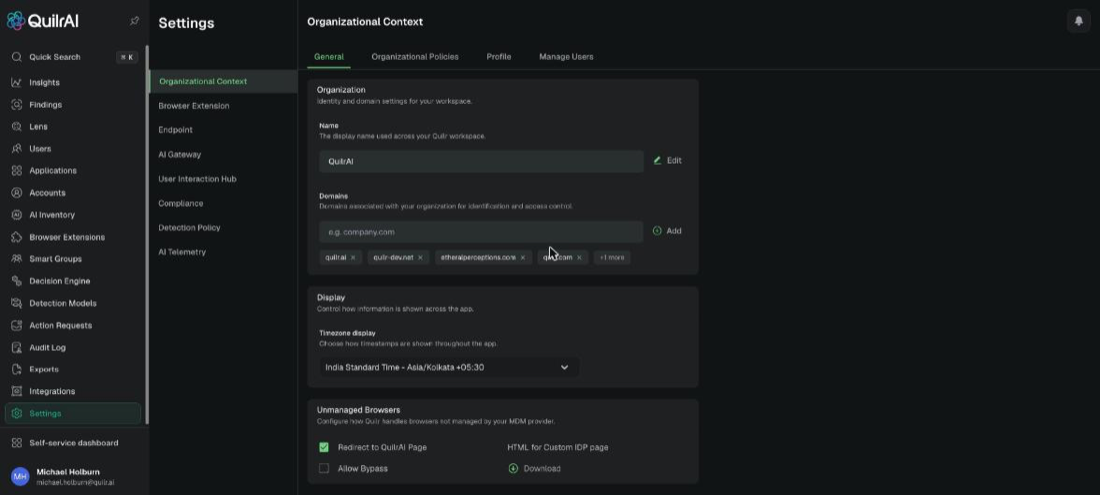
Organizational Context, General: organization name, domains, timezone display, and unmanaged-browser handling. Example tenant.
Expected result: The organization name and domains appear in end-user prompts, and every console timestamp uses the selected timezone.
Unmanaged-browser options
Add the AI acceptable-use policy
-
Select Organizational Policies. The List of Policies shows POLICY NAME, POLICY CREATION METHOD, CREATED BY, and FIRST UPLOADED for every policy already held.
-
Select + Add New Policy.
-
Keep Upload Policy selected, then select Browse and choose the approved policy document. The guide references
Organization_AI_Acceptable_Use_Policy.docxas a starting template; obtain it from your administrator if needed. -
To draft a policy instead, select Generate Policy, enter a Policy Name, add optional guidance in Inputs to generate the policy, and select Generate. Read the generated text in full and edit it before saving.
-
Select Save.
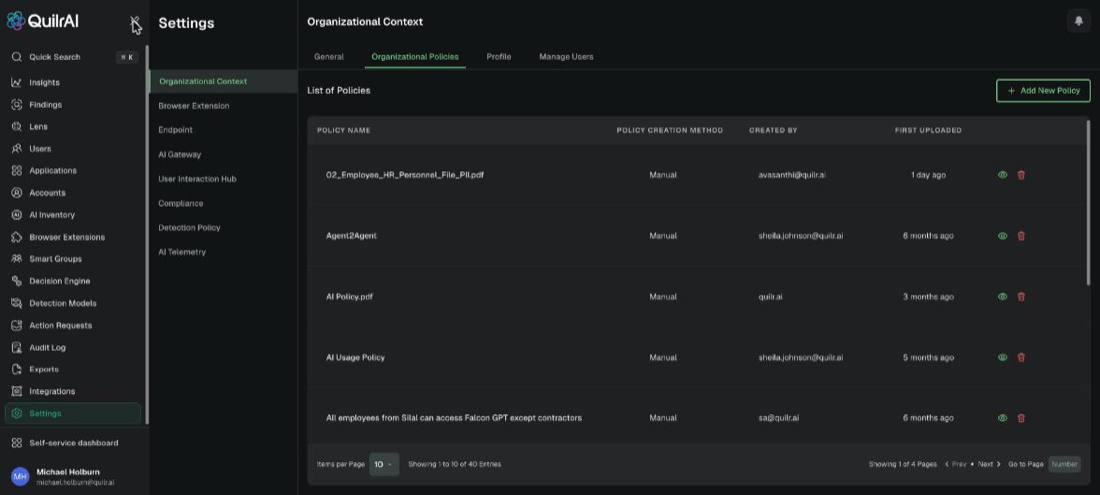
List of Policies with the policy inventory and the + Add New Policy control. Example tenant.
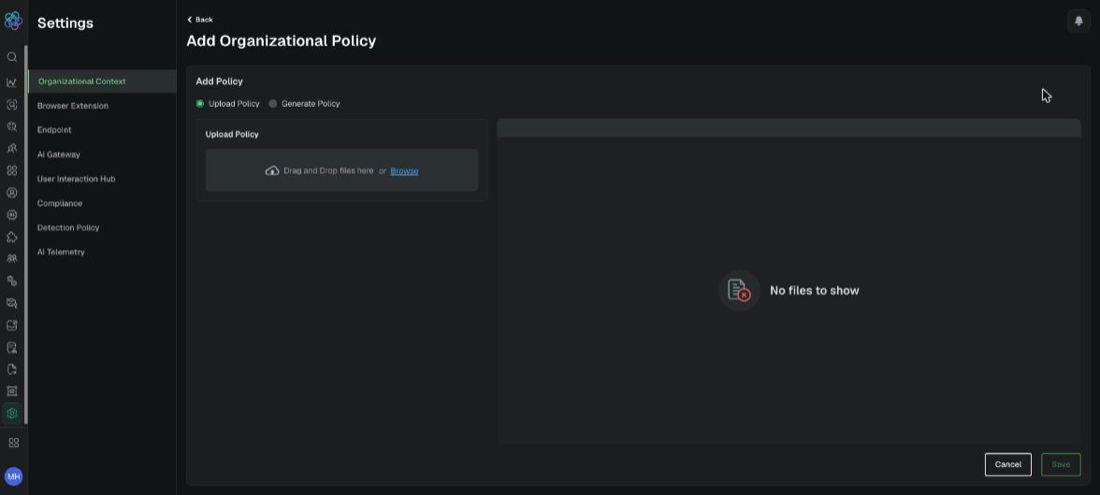
Add Organizational Policy in Upload Policy mode, with drag-and-drop and Browse. Example tenant.
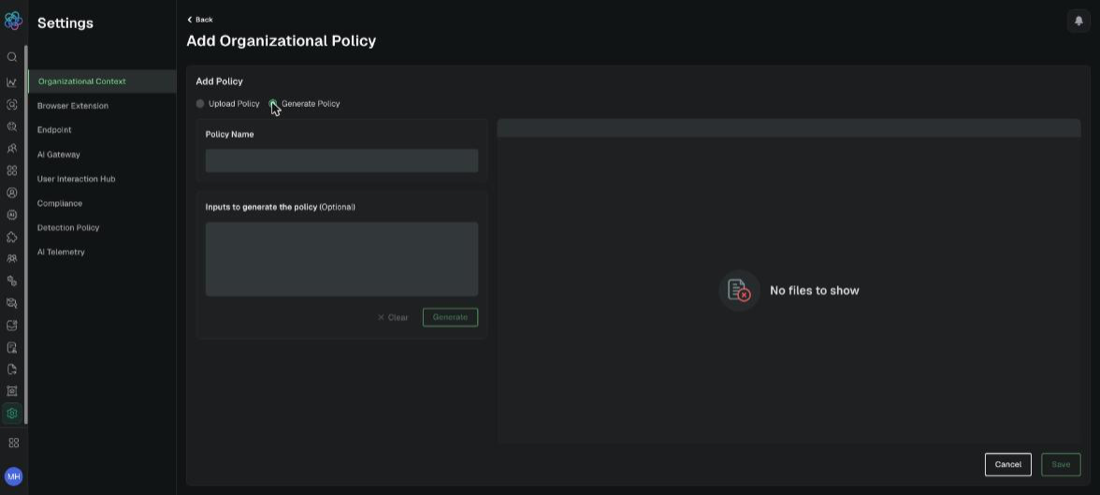
Add Organizational Policy in Generate Policy mode, with Policy Name and optional generation inputs. Example tenant.
Expected result: The policy appears in the List of Policies, and coaching messages can quote it.
Verification: Trigger an approved browser test with synthetic data and confirm the policy is available to coaching. Keep the control in Monitor while validating findings; validate the visible coaching prompt only when the staged control is configured to show it.
Check your own console profile
Profile is read-only. The banner states that the profile is created through an integration with Microsoft and that details are synced directly and are not editable here. The tab shows Name, Email, and Notifications. Change these values in your identity provider, not in QuilrAI.
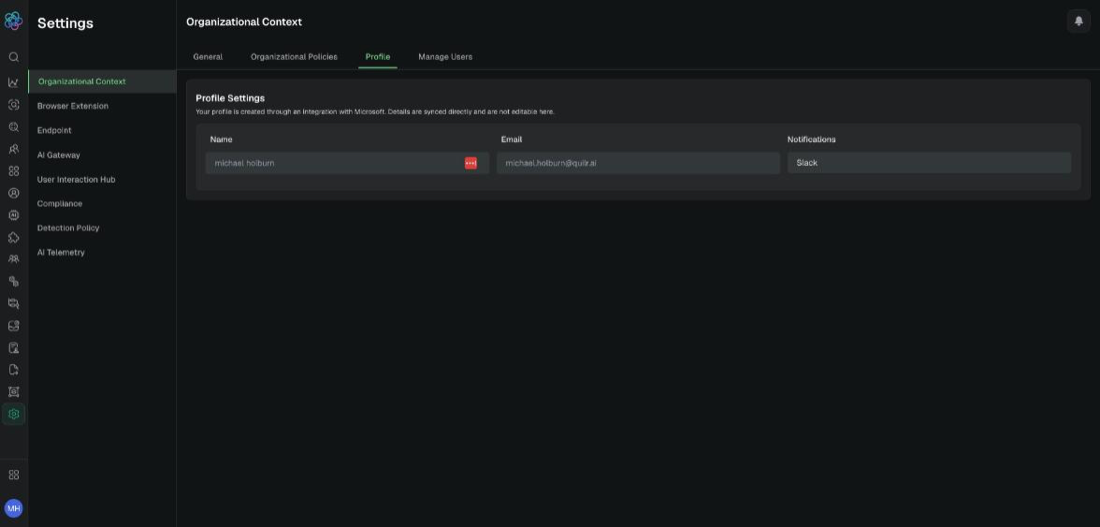
Profile Settings, showing the identity-provider-synced name, email, and notification channel. Example tenant.
Verify the baseline
Expected result: Organization-wide configuration is reviewed under change control before policies or enforcement depend on it.
Verification: Confirm the saved state, affected workflow, audit evidence when available, and rollback path. Treat a missing page or disabled field as an access or tenant-edition question, not proof that the capability does not exist.
Manage invitations and group assignments through Console Access Control.