Console Access Control
Grant console access through approved identities, verify the resulting permissions, and review access regularly.
Open Settings > Organizational Context > Manage Users. Use the Users sub-tab for console accounts and the Groups sub-tab for group membership and assigned roles.
Add a console user
-
Select Manage Users. The Users sub-tab lists NAME, GROUPS, ROLE, PRIMARY EMAIL, USERNAME, LAST LOGIN, CREATED ON, and UPDATED ON. Use All Roles and All Groups to filter.
-
Select + Add Users.
-
Search for the person in User, or enter their address in Email.
-
Leave Same as email selected under Username so the username matches the email address.
-
Enter First Name and Last Name.
-
Set Roles to the role the person needs. Review the role descriptions before sending the invitation.
-
Review Auth Type and Vendor against the tenant's configured identity provider. The guide does not specify a required vendor value; confirm it with the provisioning administrator.
-
Select Send Invite.
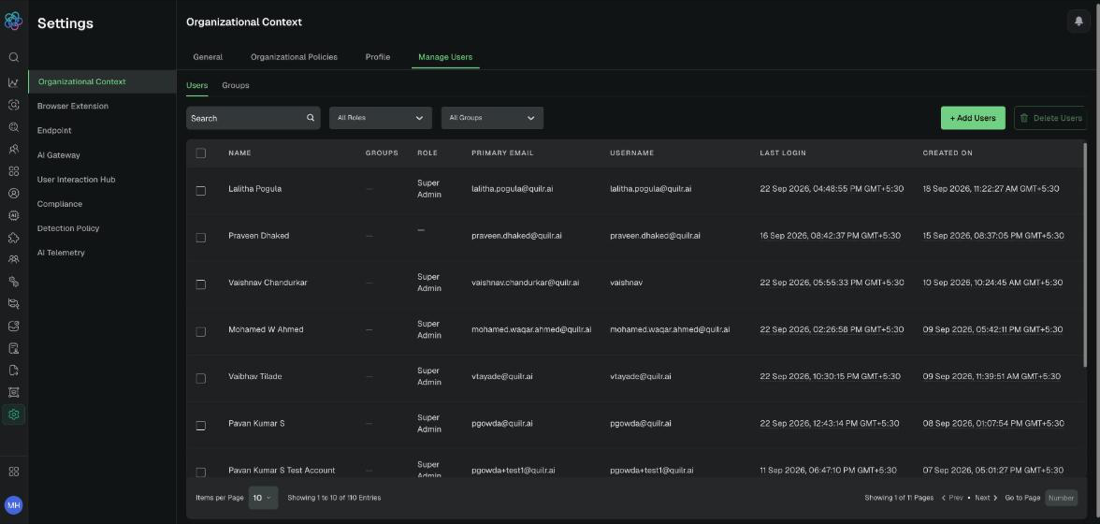
Manage Users, Users sub-tab: the console account inventory with role and group filters. Example tenant.
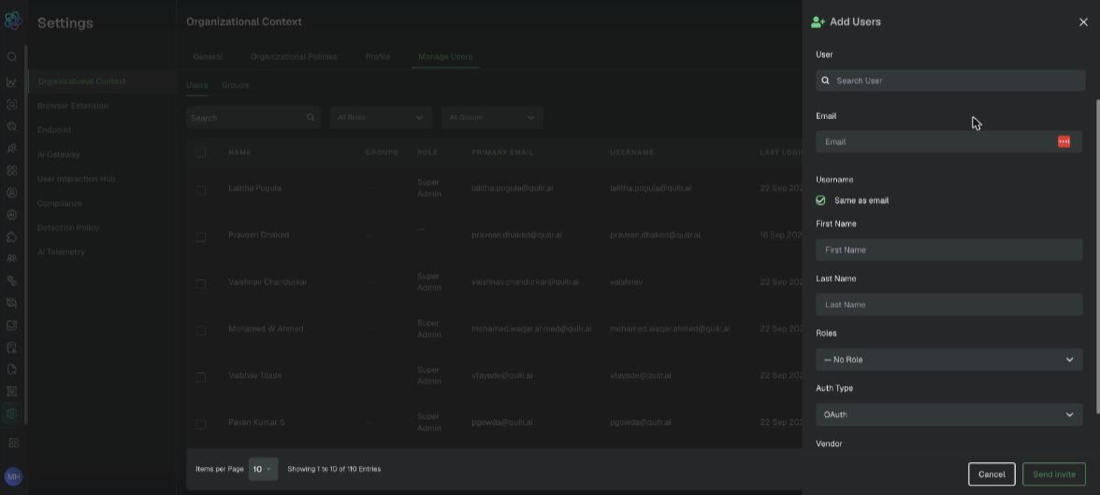
Add Users, showing the user, email, username, name, role, and authentication fields. Example tenant.
Expected result: The person receives an invitation and appears in the Users list with the role you set.
Create a group and assign a role
-
Select the Groups sub-tab. The list shows GROUP NAME, TYPE, ASSIGNED ROLE, MEMBERS, and ACTIONS.
-
Select + Create Group.
-
Enter the Group Name and an optional Description.
-
Set Assign Role to the role every member of the group should hold.
-
Select Create Group.
-
Use Change Role to change the role later, and Members to add or remove people. Groups of type IDP are synced from your identity provider and cannot be deleted here; groups of type CUSTOM can.
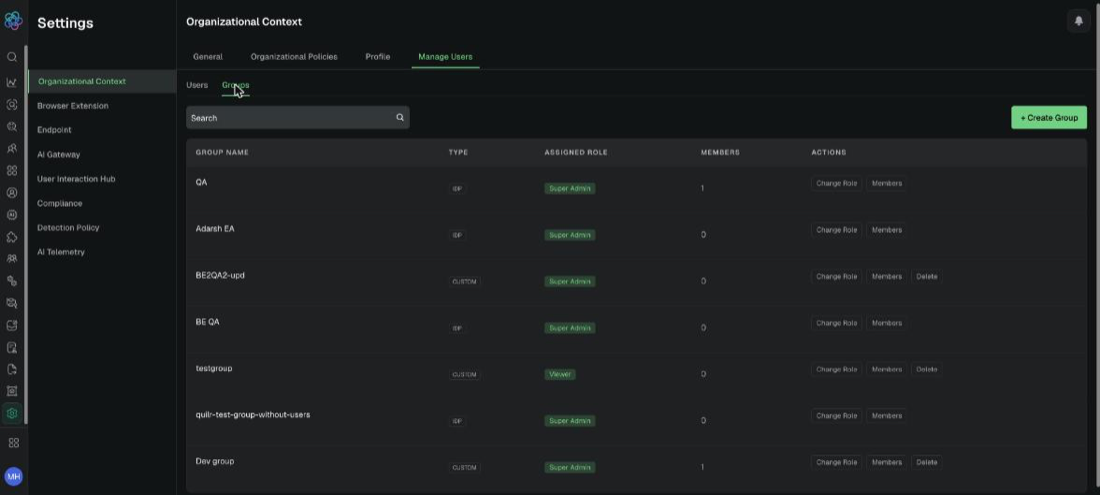
Manage Users, Groups sub-tab, with group type, assigned role, member count, and per-group actions. Example tenant.
Roles in Manage Users
Assign the role that matches the person's responsibilities. Verify the resulting screen access after each assignment or role change.
Verification: Confirm that each new account appears in the Users list and that the assigned role provides the intended access. Review the Audit Logging Console for the account or role change.
Review access
Record the person, role, business reason, approver, and review date for each console account. Review both individual assignments and group membership, and remove access promptly when it is no longer needed.
Use named accounts, change tickets, and independent audit review to support separation of duties. Test that a user can perform the actions their role requires and cannot perform actions outside that role.
Expected result: Each console user has an approved role, and the account and group records match the intended access.
Verification: Retain the approval and review date, confirm role changes in the Audit Logging Console, and investigate unexpected access before configuration work continues.