User Interaction Hub
Control exactly what an end user sees when QuilrAI coaches them, asks them to justify an action, or blocks it.
Navigation: Settings > User Interaction Hub. Tabs: Customize Logo, Customize Content, and Customize Links. A live preview of the end-user prompt is shown on the right of every tab, and it updates as you edit.
Configuration and options: Customize Logo sets the branding. Customize Content is the message library, one row per combination of posture, use case, and control. Customize Links attaches reference URLs to a posture so the prompt can link to your policy.
Brand the prompts
-
Open Customize Logo.
-
Under Use Company Logo, select Custom logo.
-
Select Upload Logo and choose the organization logo. The file must be a .png, should use transparency, and must be no larger than 2 MB.
-
Check the preview on the right, then select Save Changes. Select Reset to return to the QuilrAI logo.
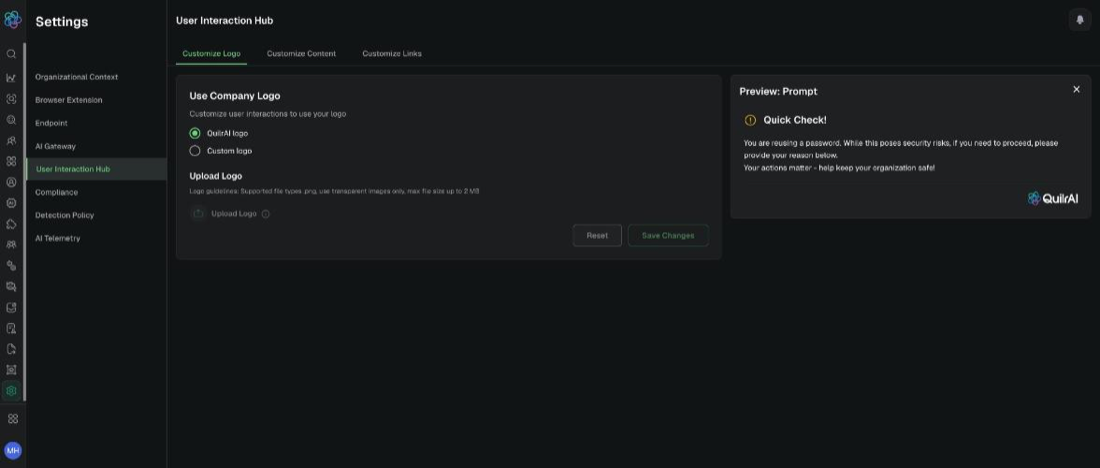
Customize Logo, with the company logo options and the live end-user prompt preview. Example tenant.
Expected result: End users see your logo on every coaching, justification, and block prompt.
Reword a message
-
Open Customize Content. The table lists POSTURES, USE CASES, CONTROLS, ACTIONS, TEMPLATES, CREATED BY, UPDATED BY, FIRST CREATED, and LAST MODIFIED.
-
Use Search by Posture, Use Case, Control, Template, or Filters, to find the message tied to the control you configured.
-
Select Edit at the end of that row.
-
Edit Message Header. This is the bold line the user reads first.
-
Edit Message Body. Use a
<br>tag where you want a line break. Name the behavior, the reason, and who to contact. -
Under Pre-defined Justifications, type a reason into Add justification options and select Add. Remove an option with the cross on its chip. These become the choices the user picks from when the action is Justify.
-
Check the preview on the right, then select Save. Select Revert to QuilrAI Default to restore the shipped wording for that one message.
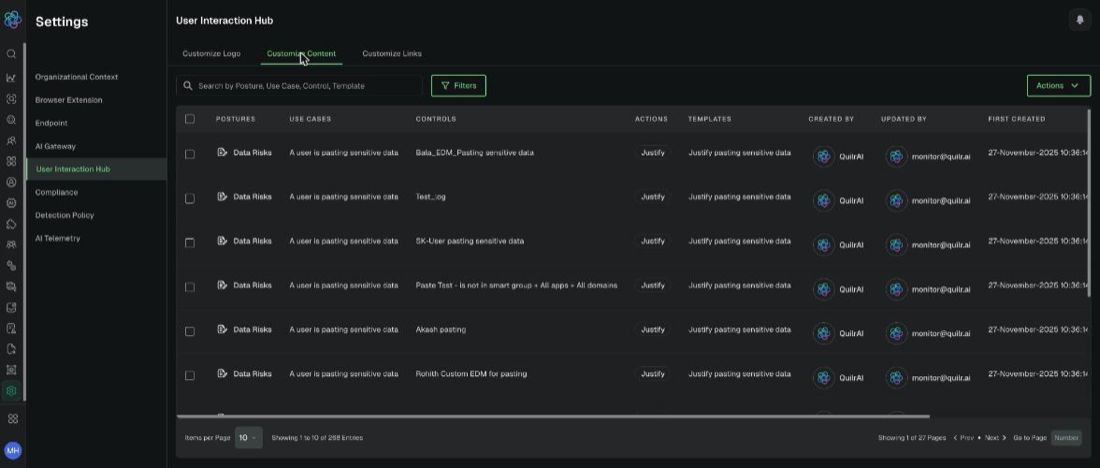
Customize Content: the message library, one row per posture, use case, and control. Example tenant.
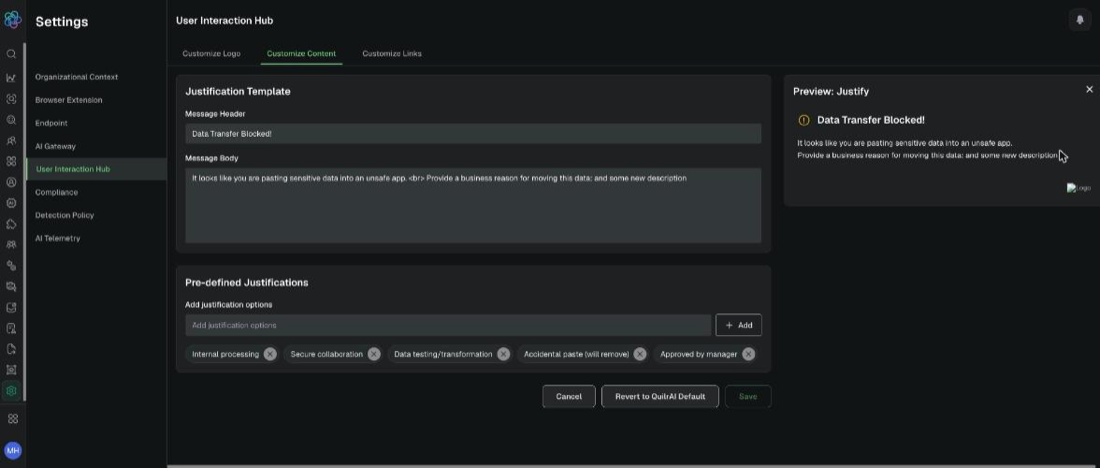
Editing a justification template, with header, body, pre-defined justifications, and the live preview. Example tenant.
Note: To restore the shipped wording for every message at once, select Actions, then Revert to QuilrAI Default. This affects the whole library, not one row, so export or record your wording first.
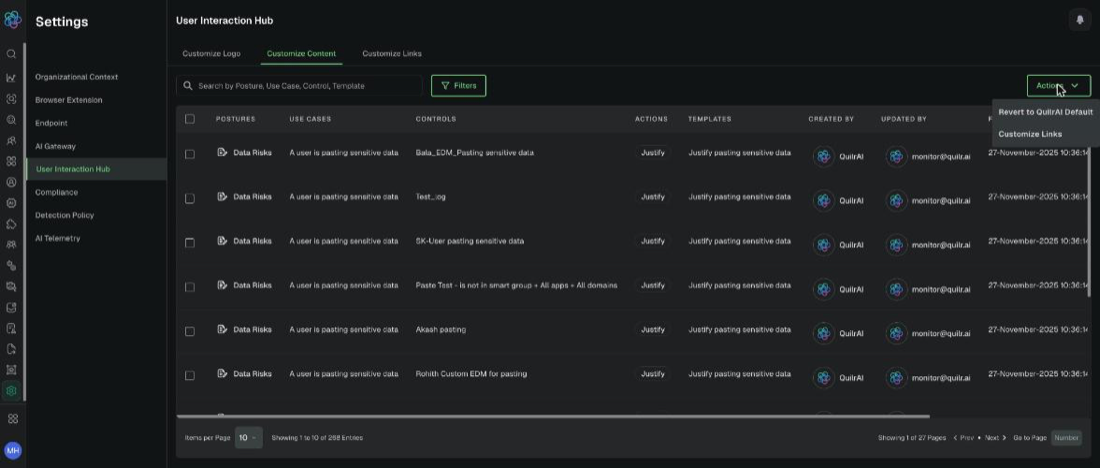
The Actions menu, with the tenant-wide revert and the shortcut to Customize Links. Example tenant.
Link a prompt to your policy
-
Open Customize Links.
-
Set Use URLs in Popups to on.
-
Under Preview Link Insertion, set Posture to the posture the link belongs to.
-
Enter the wording the user will see in Document / Link Identifier, for example AI usage policy.
-
Enter the address in URL and select Add.
-
Repeat for each posture, then confirm the links appear in the preview on the right. Use the pencil icon to edit an entry and the trash icon to remove one.
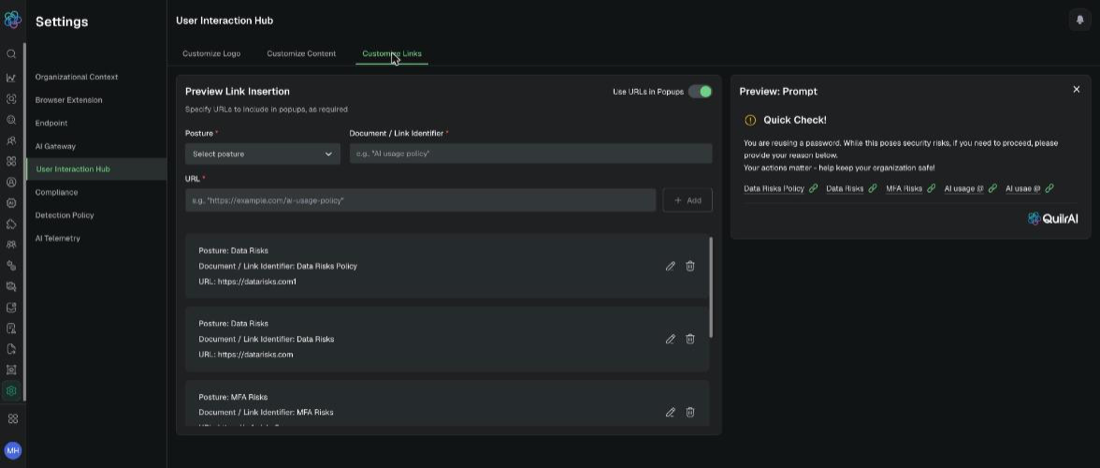
Customize Links, with posture, link identifier, URL, and the links rendered in the preview. Example tenant.
Verification: A synthetic test shows the updated logo, wording, justification options, and policy link in the end-user prompt.
Pair prompt changes with a staged policy test and preserve the resulting finding.