Dashboards and Exports
Use time-bounded dashboards to identify investigation targets and export supported filtered lists for reproducible analysis.
Navigation: Set the date range and filters on the relevant dashboard or list. Use Export where the current screen exposes it, then open Exports to retrieve generated jobs.
Configuration and options: Verified list exports use CSV. Users carries the current filter/data scope; Audit Log includes the selected date range and filter summary. The central Exports queue shows type, user, status, start, duration, records, format, and action.
Role-specific value: Administrators use exports for governance and change evidence; Security Engineers use them for case scoping, timelines, and controlled joins.
Verification: The file rows reconcile with the filtered UI and the export job preserves enough context to reproduce the query.
Dashboard interpretation
-
Set the date range first and record it. Compare totals only when dashboards use the same range and source.
-
Apply one filter at a time, observe the result count, and preserve the final filters in the case notes.
-
Drill from a trend or category into the underlying Users, AI Assets, or Findings records. A chart change is a lead, not a conclusion.
-
If a dashboard has no Export control, export the supported underlying list; do not imply that a dashboard image is a structured export.
Users export
-
Open Users, choose the required time window, then apply department, identity-provider group/status, source, and sensitive-data filters as needed.
-
Select Export and confirm CSV and Current filter. With no filters, the dialog represents all records in the available scope.
-
Create the export, open Exports, and wait for Completed. Download it only to the approved evidence location.
-
Compare several rows and the record count with the filtered screen. Record the date window, filters, creator, and case purpose.
Audit and central export queue
The Audit Log export dialog described in the guide specifies a 14-day window and a 5,000-row maximum. The central Exports queue records job type, requesting user, status, start, duration, records, CSV format, and the available download action. See Audit Logging Console for the procedure.
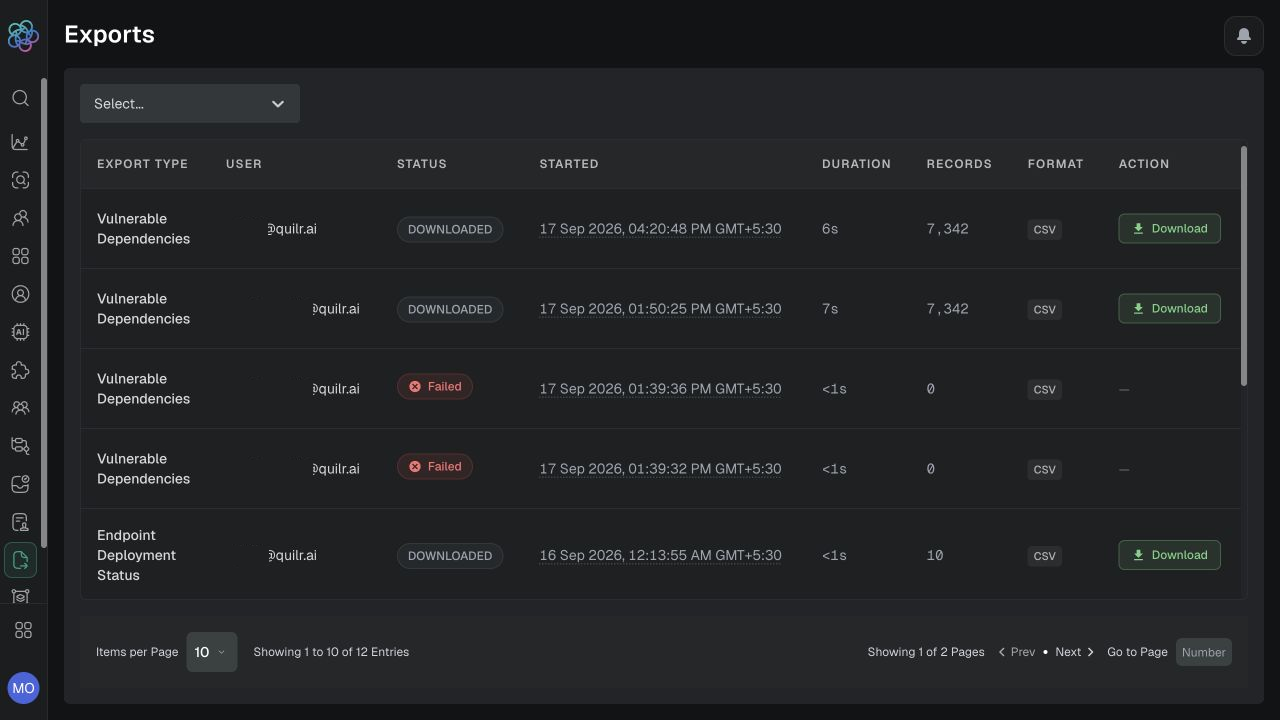
Central Exports queue showing type, masked user, job status, timing, record count, CSV format, and download action.
Status handling: Completed or Downloaded means the file was generated; Failed requires a deliberate review of scope and access before retry; Expired means the queue artifact is no longer available. The exact retention duration was not visible. Treat exported identity, activity, and finding data as sensitive operational evidence.
Expected result: A scoped CSV can be traced to its filters, creator, date window, record count, and case purpose.
Verification: Compare representative rows with the filtered UI. No direct Export control was observed on the inspected AI Insights or Governance Reports dashboards; use their supported underlying detail views.