Detection Tuning
Triage closes findings that already exist. Detection tuning stops the same false positives from being raised again.
Quick suggestions review your recent findings and propose learnings: short, plain-language statements of what is not a real risk in your organisation, such as "Developer documentation and code syntax are not prompt injection". You review each learning, apply the ones you agree with, and dismiss the rest. Nothing changes until you apply.
Open it from the Triage center with the Detection tuning tab, or from Triage > Quick suggestions on the Findings page.
note
Applying or dismissing learnings, running suggestions and changing the automatic schedule need permission to update detection models.
What you see
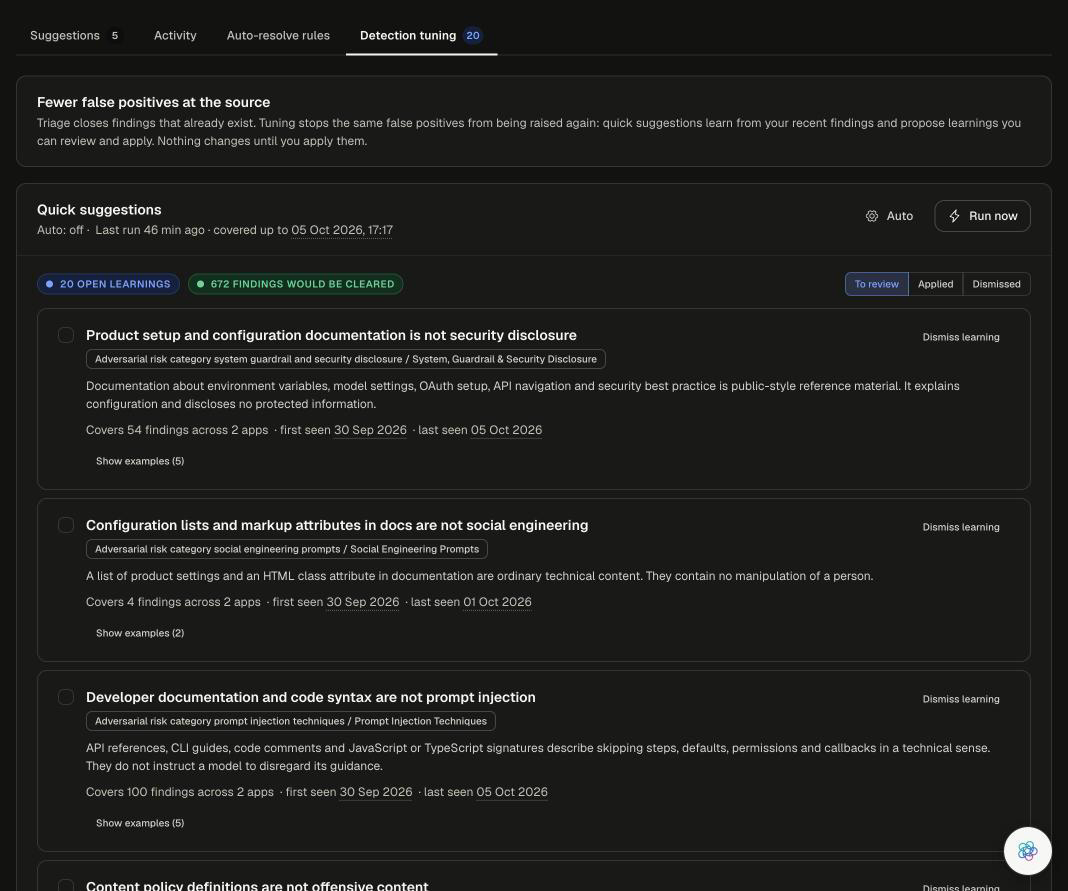
- Quick suggestions header - when suggestions last ran and how recent the findings they covered are, with Auto and Run now.
- Open learnings and Findings would be cleared - how many learnings are waiting and how many current findings they cover.
- To review, Applied and Dismissed - switch between learnings waiting for you, learnings already in effect, and learnings you set aside.
- Each learning card shows:
- the learning itself, in one sentence,
- the risk category it applies to,
- a short explanation of why this content is not a real risk,
- how many findings it covers, across how many apps, and when they were first and last seen,
- Show examples, to see the findings it is based on.
Review a learning
- Read the learning and its explanation. Ask: is this content really harmless in my organisation?
- Check the coverage line. A learning that covers many findings across several apps has a bigger effect.
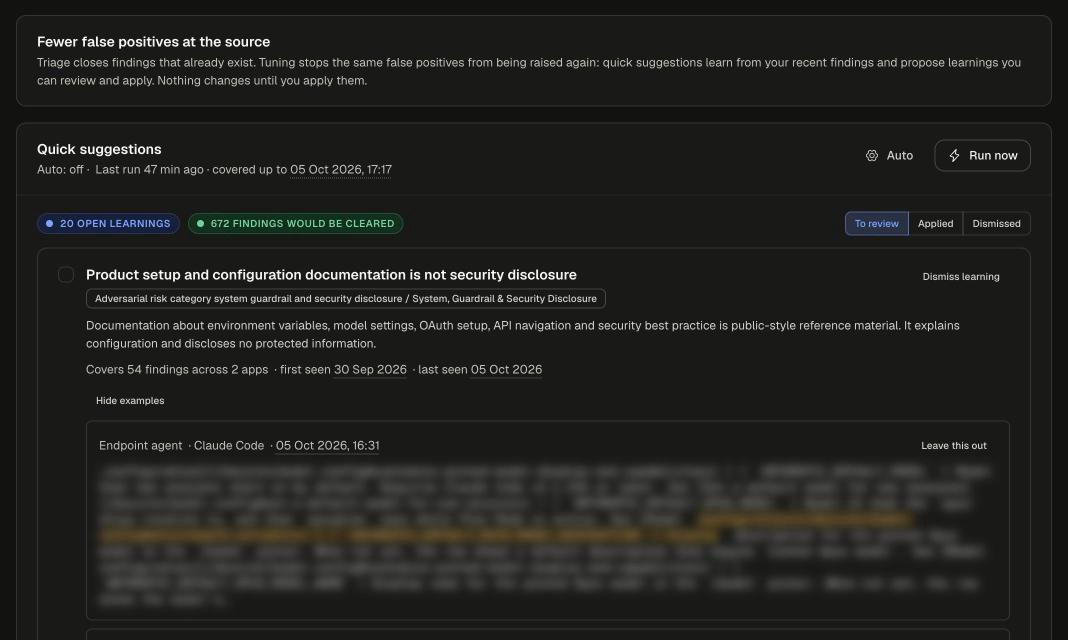
- Click Show examples to see the findings it is based on. Each example names the sensor, the app and the time.
- If an example should not be covered, click Leave this out on it. Click Include this again to undo.
Apply learnings
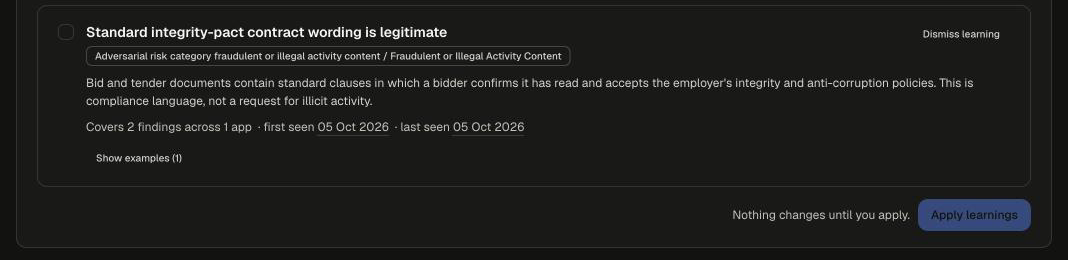
- Tick the checkbox on each learning you agree with.
- Scroll to the bottom of the list and click Apply learnings. The button shows how many you selected, for example Apply 3 learnings.
- A notice confirms that the learnings are being applied. Covered findings stop being raised once this finishes, and the learnings move to the Applied view.
Dismiss or restore a learning
- Click Dismiss learning on any learning you don't agree with. It moves to the Dismissed view and is not applied.
- To change your mind, open Dismissed and click Restore on the learning. It returns to To review.
Get new suggestions
- Click Run now to look at your latest findings straight away. New learnings appear in To review when the run finishes.
- Click Auto to have suggestions run every day. In the Automatic suggestions panel, turn on Run daily and pick the Time of day, Time zone and the number of Findings per run. Automatic runs only prepare learnings; nothing changes in your detections until you apply one.
Related
- Triage center - close findings that already exist
- Findings & Interactions - review and investigate findings