Providers and Models
Settings > Models, global providers and credential reuse across apps are available in the V2 console only. In V1, each app keeps its own provider credentials.
A global provider is a provider connection you set up once for the whole tenant and then link to any number of apps. You manage them in Settings > Models under Your models.
Global providers or app-specific credentials
An app uses either global providers or app-specific credentials, never both. You cannot convert an app later. To switch, create a new app.
Your models
Go to Settings > Models > Models and select Your models.
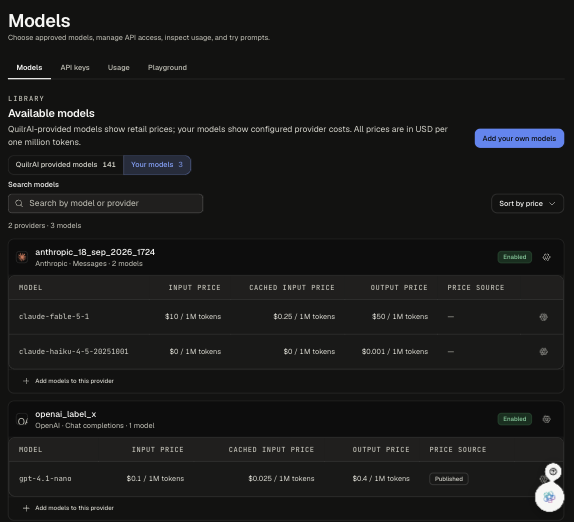
Each card is one provider connection. It shows the label, the provider and API (for example Anthropic · Messages), its status, and each model's input, cached input and output price in USD per 1M tokens. Price source shows Published when the price came from the provider's published list.
The QuilrAI provided models switch shows the models QuilrAI hosts. See QuilrAI-Provided Models.
Add a provider
Click Add your own models. Nothing is saved until the last step. Use + Add provider at the top to connect several providers in one save (each provider type once per batch).
1. Connect
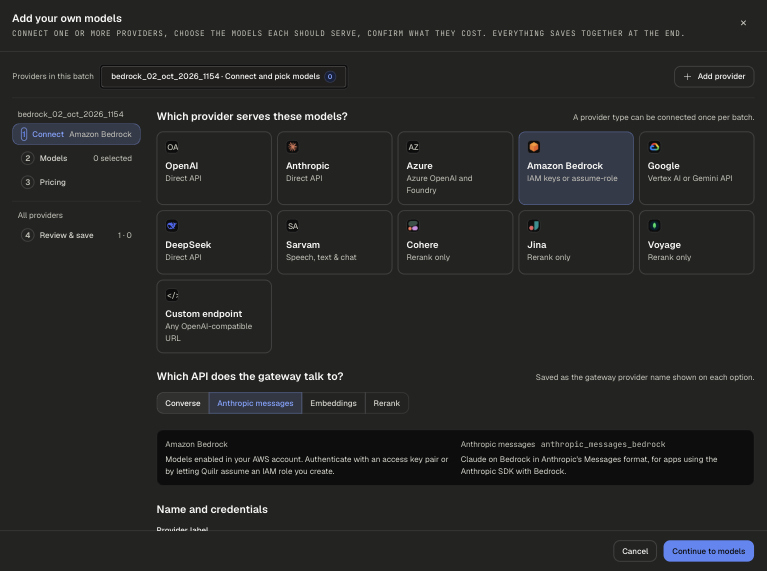
- Pick the provider tile.
- Under Which API does the gateway talk to?, pick the API your apps call. This sets the gateway provider type.
- Set the Provider label. The console suggests one such as
openai_02_oct_2026_1150. The label is permanent once saved. - Fill in the credentials. See Provider Support for each provider's fields.
- Click Check key and list models.
Oracle OCI is coming to this page. Until then, set it up from the V1 console. See Provider Support.
2. Models
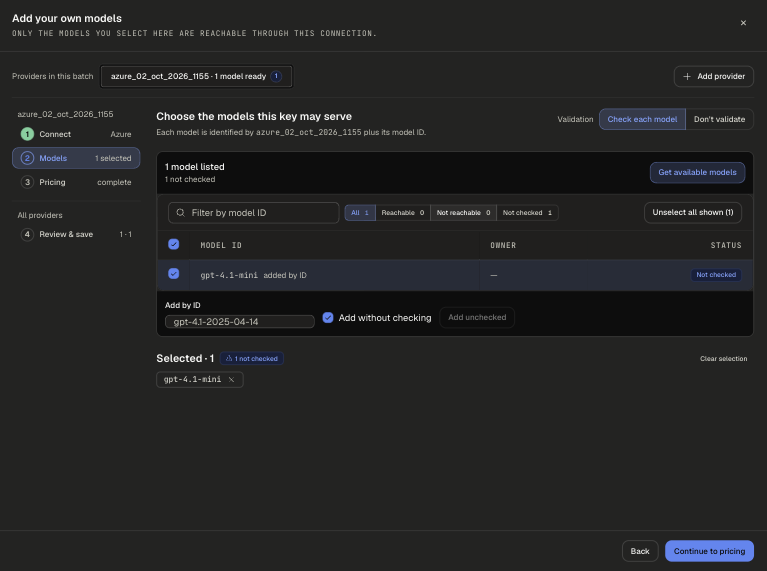
Only the models you select here are reachable through this provider.
- Get available models asks the provider which models the key can reach.
- Add by ID adds a model by name. Tick Add without checking to skip the reachability test.
- Validation set to Don't validate skips checks for the whole step.
3. Pricing
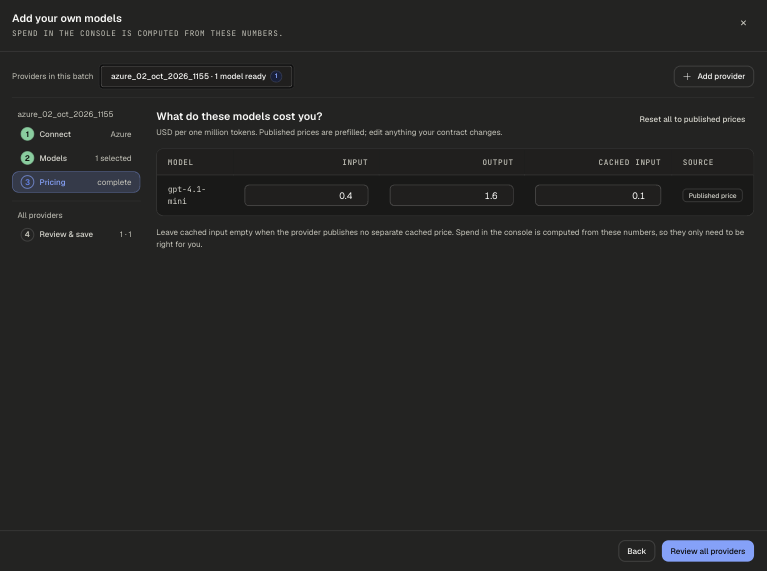
Enter what each model costs you in USD per 1M tokens. Published prices are prefilled, so you only edit what your contract changes. Input and output are required; leave cached input empty if the provider has no separate cached price. The console computes estimated spend from these numbers.
4. Review & save
Click Review all providers, check the summary, and save.
Add models to an existing provider
Click + Add models to this provider under a card, or Add models in its gear menu.
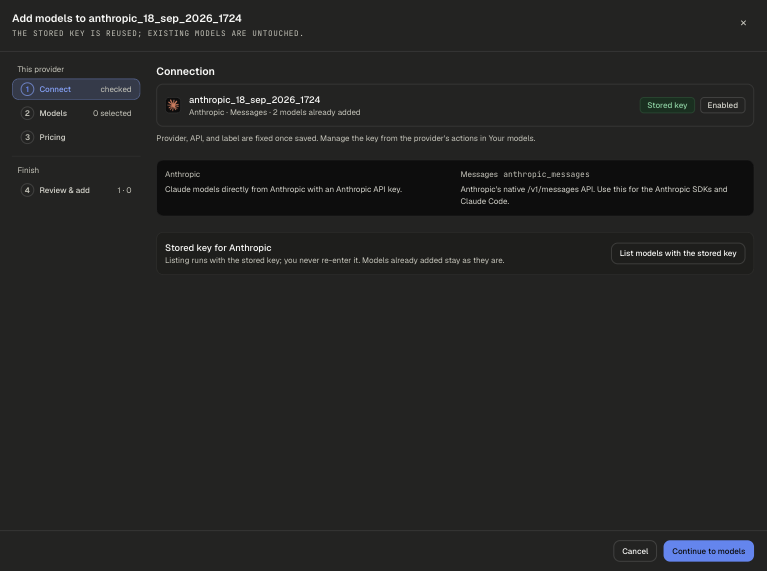
- The stored key is reused. You never re-enter it.
- Provider, API and label stay fixed.
- Models already on the provider are marked Already added.
- Every linked app can call the new models once they are saved.
Enable, disable and delete
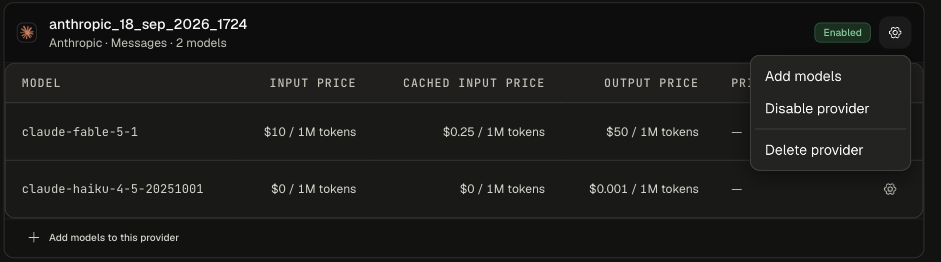
Disabling or deleting a global provider, removing a model, or changing its credentials (for example with the Management API) applies to every app linked to it. Changes can take a short time to appear.
Link providers to an app
In Create App, step 1 shows Global providers by default when any exist.
- Pick one or more providers. The first one is the Primary. To change the order, remove and reselect.
- The app inherits every model and credential of the linked providers.
If none exist, the wizard says No global providers are available and links to Settings > Models. See Quick Start.
To send a request to one specific linked provider, pass its label. See Selecting a provider.
QuilrAI-provided models in an app
QuilrAI-provided models can back a gateway app today through a General LLM (general) provider: base URL https://models.quilrai.dev/v1 and a model API key from Settings > Models > API keys. Direct integration is coming soon. See QuilrAI-Provided Models.