QuilrAI-Provided Models
Settings > Models is available in the V2 console only.
QuilrAI hosts a catalog of chat models behind one OpenAI-compatible endpoint. You do not need a provider account: create a model API key, pick the models it may call, and send requests to https://models.quilrai.dev/v1.
When to use which
A model API key can only call QuilrAI-provided models. Your own provider models cannot be added to it.
1. Browse the catalog
Go to Settings > Models > Models and select QuilrAI provided models.
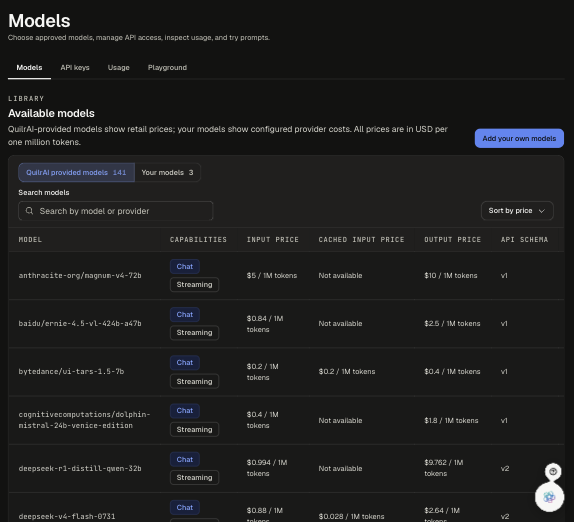
Columns: Model (the exact id to send as model), Capabilities, Input price, Cached input price ("Not available" when the model has no cached-input price), Output price, and API schema. Prices are USD per 1M tokens. See the full catalog below.
2. Create a model API key
-
Go to Settings > Models > API keys and click Create API key.

-
Fill in the dialog:
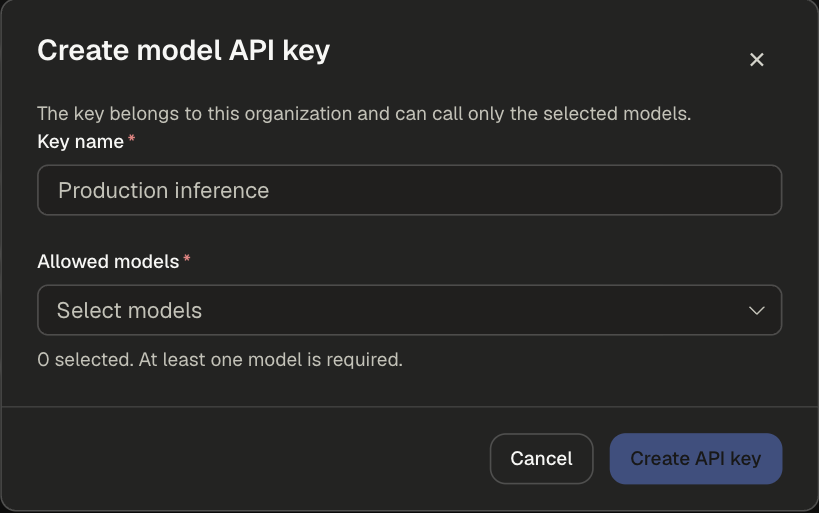
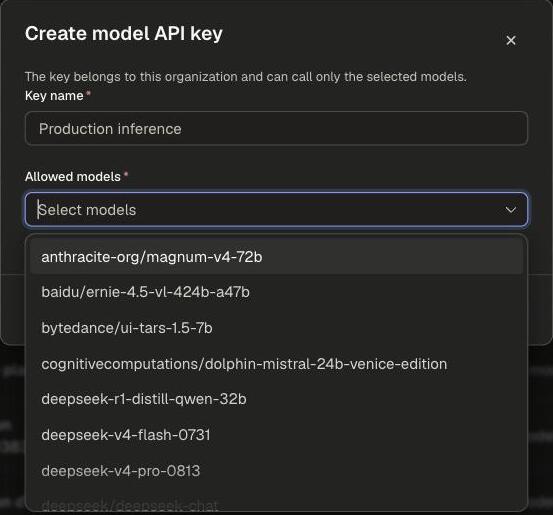
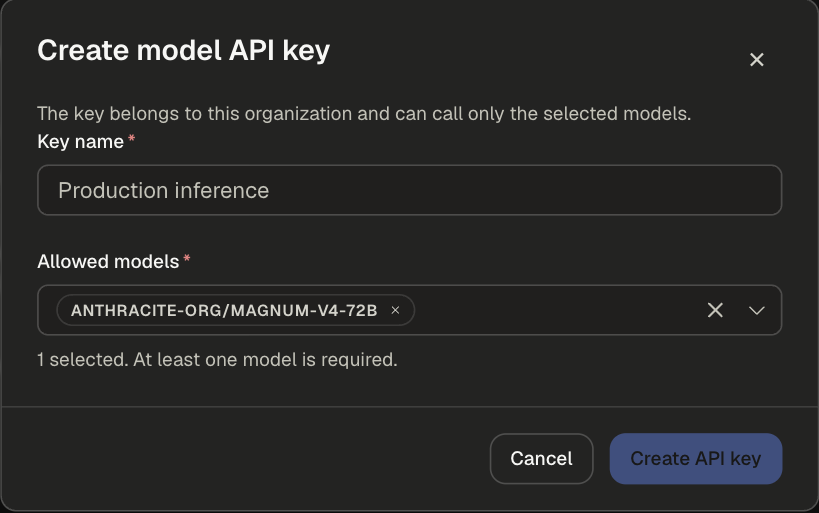
-
Click Create API key. The full key (
sk-quilrllm-...) and the inference base URL are shown once. Copy the key and store it securely; the console keeps only the key prefix.
If you lose the key, revoke it and create a new one. Revocation is permanent.
The API keys list shows each key's name, key prefix, allowed models (click View to expand), status (ACTIVE / REVOKED), requests and spend this month, and a Revoke action. Keys have no expiry and no per-key spend limit; the organization credit is the only cap.
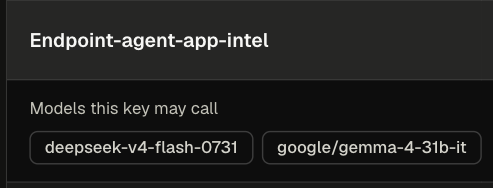
You may also see keys you did not create:
Permissions: viewing the catalog, keys, and usage needs LLM Gateway read access. Creating a key needs LLM Gateway create access (under RBAC V2, llm.apps.create and secrets.reveal). Revoking needs LLM Gateway delete access (llm.apps.delete). Every key creation is recorded in the audit log.
3. Call a model
export QUILR_MODEL_API_KEY="sk-quilrllm-..."
- cURL
- Python
- Node
curl 'https://models.quilrai.dev/v1/chat/completions' \
  -H "Authorization: Bearer $QUILR_MODEL_API_KEY" \
  -H "Content-Type: application/json" \
  --data '{
  "model": "deepseek/deepseek-v3.2",
  "messages": [
    {
      "role": "user",
      "content": "Explain zero trust in one sentence."
    }
  ],
  "temperature": 0.7,
  "top_p": 1,
  "max_tokens": 1024
}'
import os
from openai import OpenAI

client = OpenAI(
    api_key=os.environ["QUILR_MODEL_API_KEY"],
    base_url="https://models.quilrai.dev/v1",
)
response = client.chat.completions.create(
    model="deepseek/deepseek-v3.2",
    messages=[
        {"role": "user", "content": "Explain zero trust in one sentence."}
    ],
    temperature=0.7,
    top_p=1,
    max_tokens=1024,
)
print(response.choices[0].message.content)
import OpenAI from 'openai';

const client = new OpenAI({
  apiKey: process.env.QUILR_MODEL_API_KEY,
  baseURL: "https://models.quilrai.dev/v1",
});
const response = await client.chat.completions.create({
  model: "deepseek/deepseek-v3.2",
  messages: [
    { role: "user", content: "Explain zero trust in one sentence." }
  ],
  temperature: 0.7,
  top_p: 1,
  max_tokens: 1024,
});
console.log(response.choices[0].message.content);
The Playground's Use this model in your app panel generates these snippets for the selected model, prompt, and settings.
Use through an LLM Gateway app
Put QuilrAI-provided models behind an LLM Gateway app to get the app's guardrails, routing, limits, and logs. The app reaches them through the General LLM provider (an OpenAI-compatible custom endpoint).
-
Create a model API key whose Allowed models include every model the app should use.
-
In the LLM Gateway, create an app (or edit an existing one) and add a General LLM provider, either as a global provider or with app-specific credentials:
-
Call the app with its QuilrAI gateway key (
sk-quilr-...) as in the Quick Start, using the catalog id asmodel.
See Provider Support for the General LLM provider's capabilities.
Usage is billed from your organization credit either way, and shows up on the model API key's spend and the Usage tab.
Native integration, selecting QuilrAI-provided models directly in Create App without a General LLM provider, is coming soon.
Try a model in the Playground
Go to Settings > Models > Playground (or click Chat on a catalog row). Playground requests count toward your organization's usage, and responses are not stored by the console. You do not need to create a key; the Playground uses its own server-held key.
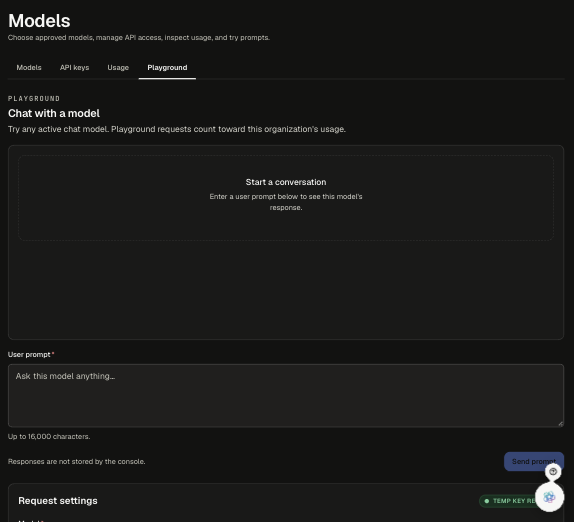
Conversations are limited to 20 messages and 64,000 characters. Playground responses are not streamed.
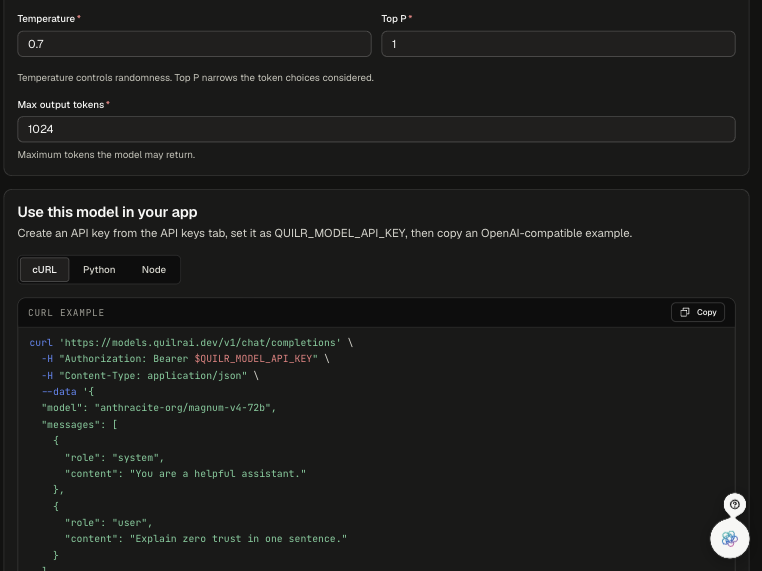
Track usage
Settings > Models > Usage shows your credit and spend. Usage can take a few moments to appear after a request completes; click Refresh to update.
Below the tiles, a per-model table lists requests, tokens, input/output/total TPS, average latency, error rate, month spend, and lifetime spend. Models that have only lifetime spend stay listed with zeros for the month. If a banner says some token totals are estimated, the provider did not report exact usage for those requests.
Per-key spend for the current month is on the API keys tab.
Model catalog
Catalog as of 2026-10-02; the console shows the current list and prices. Prices are USD per 1M tokens. API schema is informational: every model is called the same way.