Applications and Keys
An application holds a gateway configuration. Quilr keys are the credentials your code uses to call it. One app can have many keys, and every key shares the app's providers, guardrails, routing, limits and logs.
Applications
- Create an app with Create App on Settings > LLM Gateway. See Quick Start.
- Name: 4 to 29 characters.
- Status: each app is Active, Inactive or Expired. Click a status on the Applications summary card to filter by it.
- Tags: click + Tag on an app card. The app search box matches tags, so you can group apps by team, environment or cost center.
- Find apps: search by app, key, provider, model, creator or tag. Filter (shortcut
F) narrows by attention (all providers off, no guardrails, key expiring soon), status or provider. Sort by creation time, name, creator or next key expiry.
Quilr keys
Every app starts with one key, named in Create App (default Default). To manage keys, click Manage keys on the app card, or open Settings > API Keys in the app workspace.
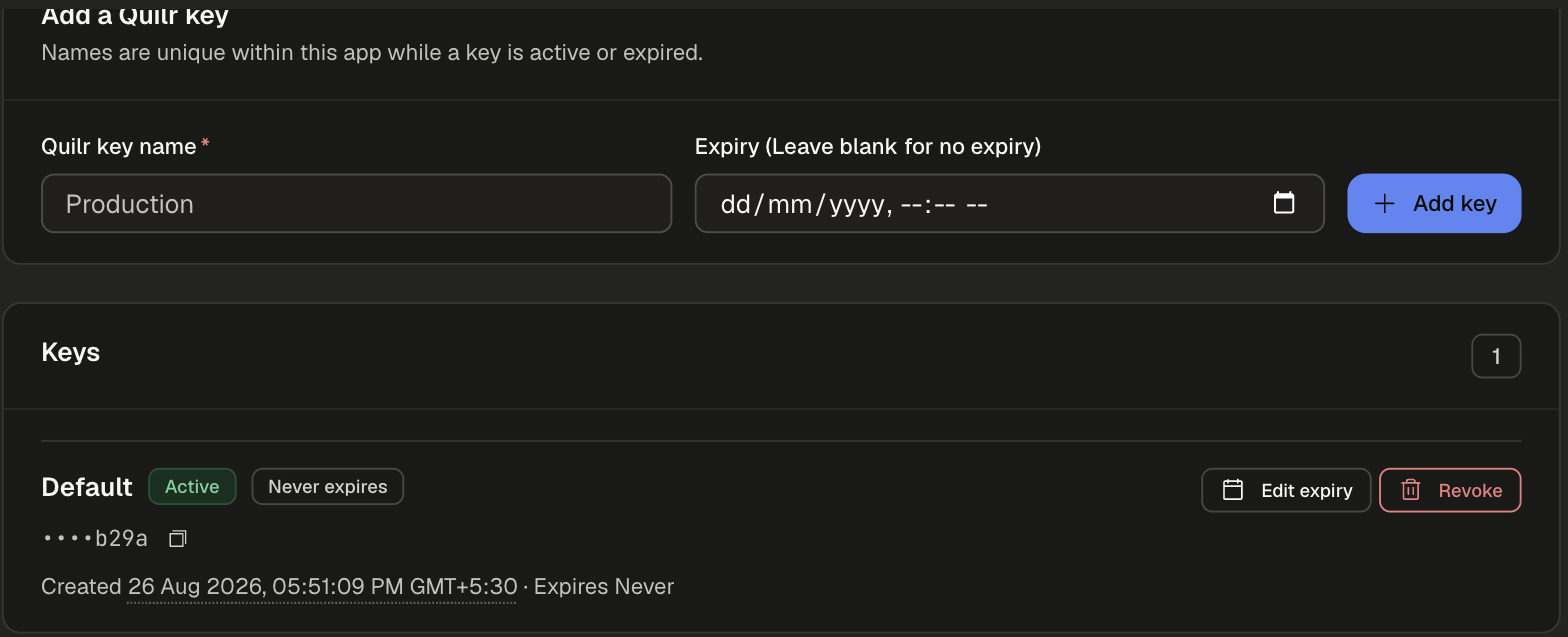
Add a key
- Enter a Quilr key name, such as
Production. Names must be unique within the app while a key is active or expired. - Optional: set an Expiry. Leave it blank for no expiry.
- Click Add key, then copy the value.
Manage a key
The app card shows how many keys are active, expired and revoked. The Needs attention card counts apps with a key expiring in the next 30 days.
Give each environment or team its own key. To rotate one, add a new key, deploy it, then revoke the old one.
API Integration
The API Integration section (or Integration docs on the app card) has the two values a client needs.
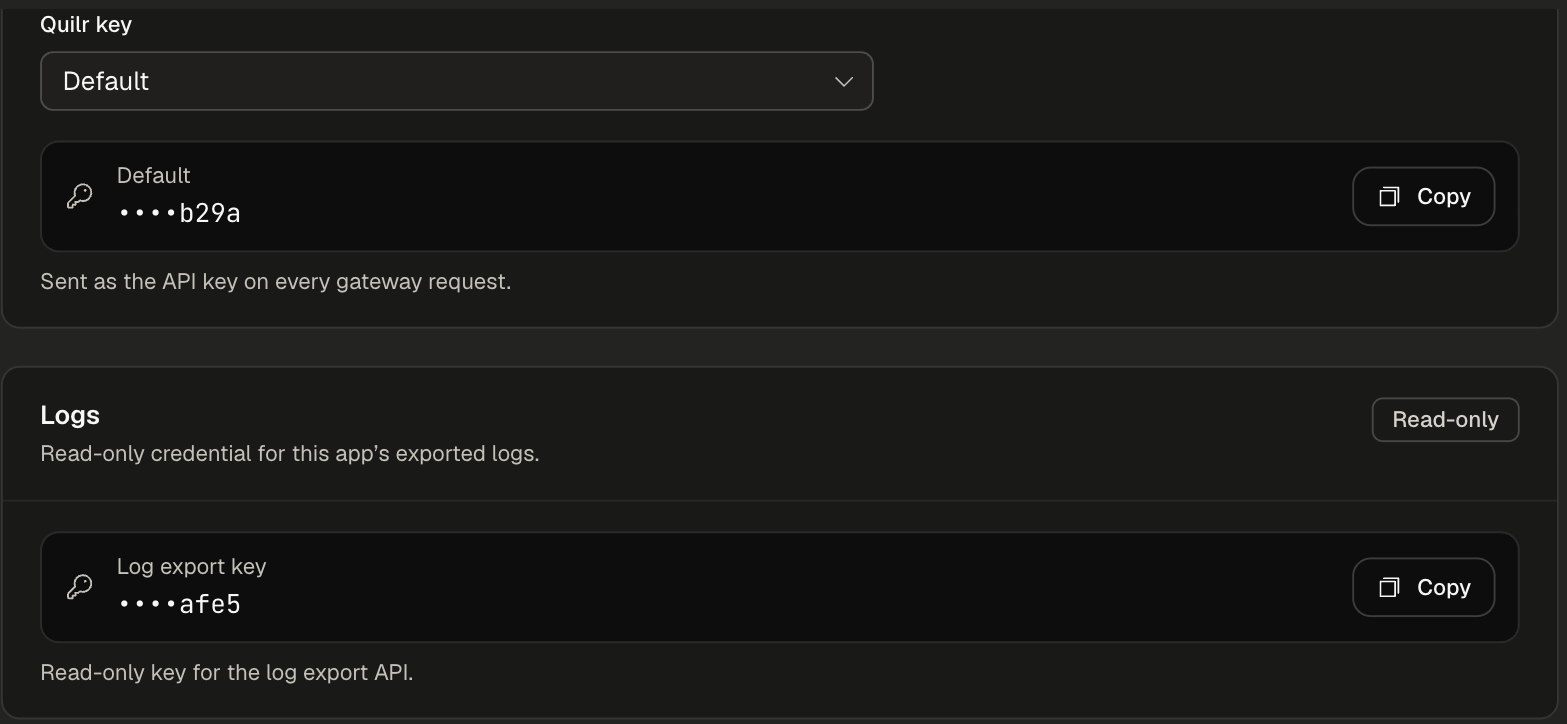
- Quilr key: pick an active key (the newest is selected by default) and copy it. Send it as the API key on every gateway request.
- Log export key: a read-only key for this app's logs. Use it with the Log Export API.
Log keys
Log keys are read-only. They cannot send model requests.
Configuration history and rollback
Every saved change to an app's settings creates a configuration version. Open Audit Log on the app card, or Settings > Audit Log in the workspace.
- Configuration versions lists each version with its operation (for example
Update config), who made it and when. The live one is marked Current. - Click Roll back on a version to restore those settings on an active app.
- Change requests lists settings changes submitted through Self-Service, for approval or rejection.
Rolling back restores app settings only. It does not change published Policy Engine policies. See Audit Log for details.
Audit tab
The workspace Audit tab lists configuration events with their application, operation (such as create or update_config), actor, status and time. The Audit log button on Settings > LLM Gateway opens it for all apps.
Automate it
The Management APIs create apps, issue and revoke Quilr keys, change expiry and read history from scripts and pipelines. See Gateway app credentials.