SketchIt
SketchIt is a QuilrAI-built MCP that turns a description of a process, structure, or dataset into a rendered diagram or chart. Unlike every other guide in this section, there is no OAuth app, Client ID, Client Secret, or API key to create - SketchIt is enabled, not connected. It has no upstream service and no credential to configure: it makes no API calls, no LLM calls, and fetches no external assets. Every render is deterministic - the same input always produces the same output.
See Quilr-Provided MCPs: SketchIt for how it compares to Excalidraw.
What This MCP Can Do
The MCP provides 8 tools. It never claims a diagram was created unless a render actually succeeded, and it never guesses a title, an icon, or a design the user hasn't specified.
SketchIt does not call an LLM and does not fetch any external URL, image, or font at render time - every asset (icons, fonts, layout logic) is bundled in the service itself. There is nothing to authorize and nothing that varies by which user is asking.
Example Renders
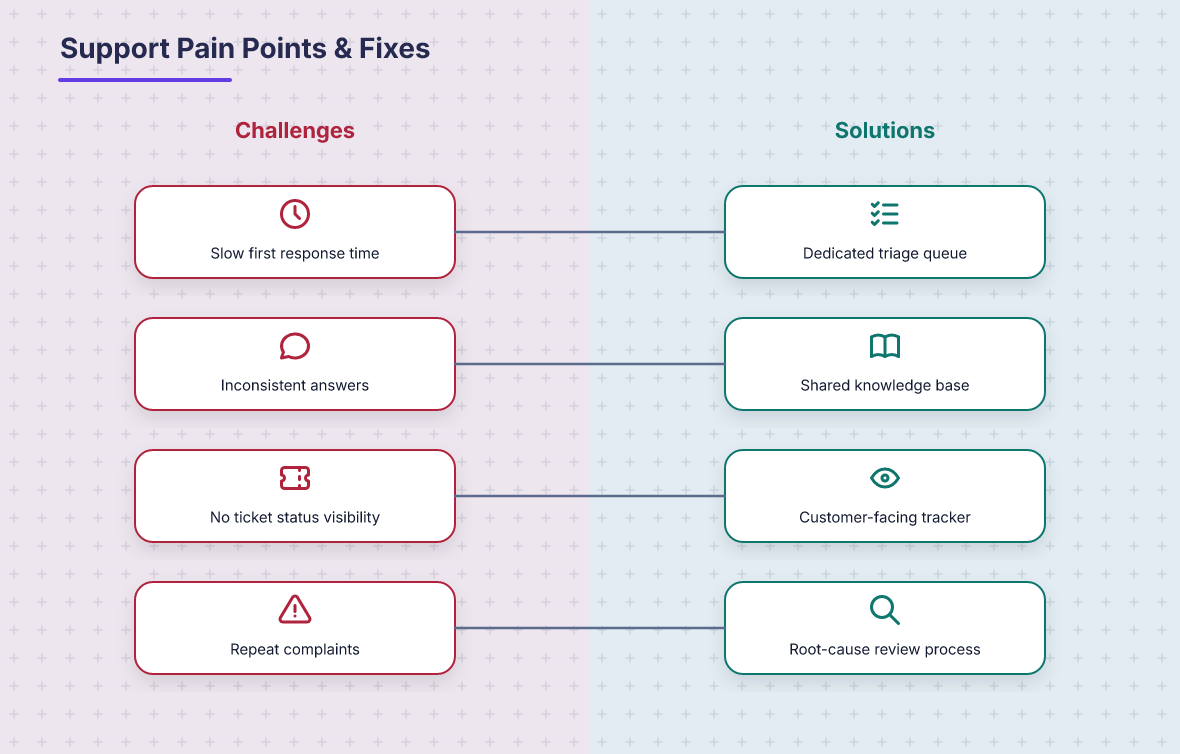
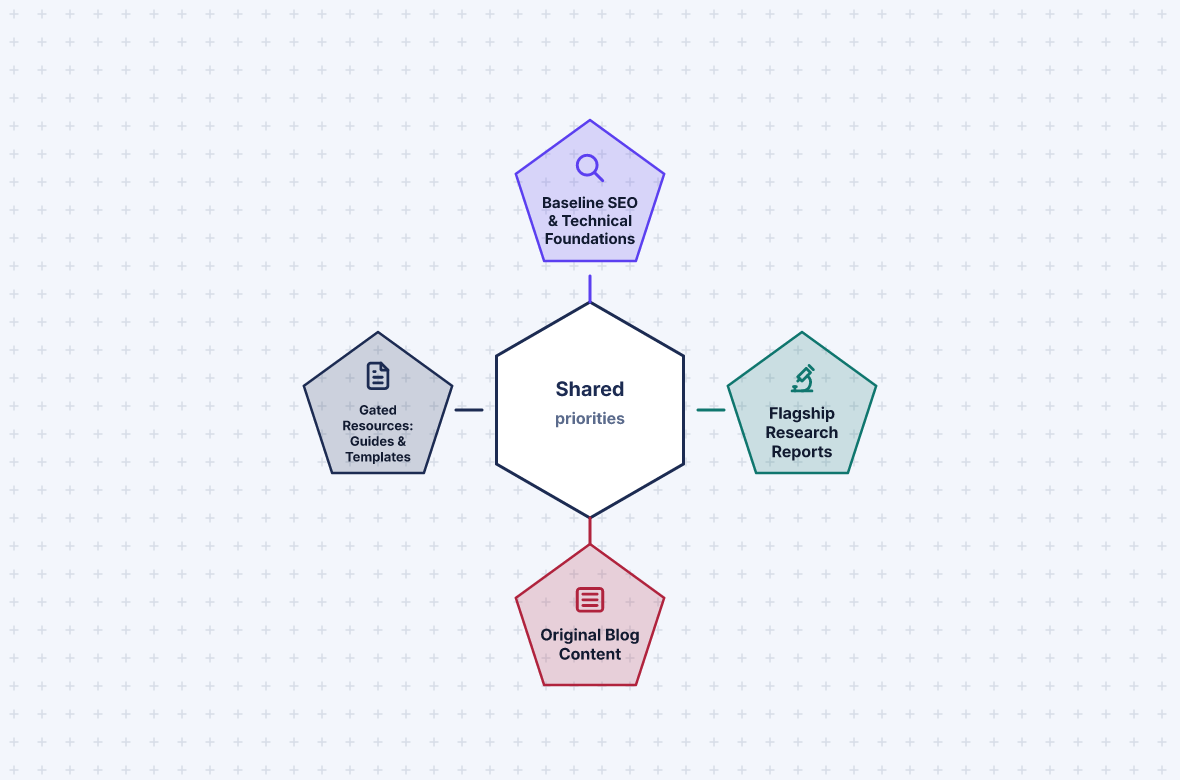
The same request-and-render loop produces a range of layouts, chosen for the shape of the content rather than defaulted to a plain flowchart.
A linear sequence renders as chevron steps:

Paired items render as a two-column comparison:
A set of related items around a common theme renders as a hub:
Before You Start
There is nothing to prepare. SketchIt needs no account, no API key, and no OAuth consent - if it's available in your MCP Store, it's ready to use.
Enable SketchIt
- Open SketchIt from the MCP Store.
- Add it to your agent - there is no credential prompt.
- Start with the verification request below.
If SketchIt is not available in your MCP Store, contact your QuilrAI administrator.
Verify The Connection
Start with a simple render:
Using SketchIt, render a flowchart for: draft a proposal, get manager approval,
send to the client.
Then test the inline design and variation flow:
Using SketchIt, walk me through how a new hire gets set up: complete paperwork,
provision laptop and accounts, grant system access, team introduction, first-week
check-in. Don't tell me what design to use - let SketchIt suggest a few.
The first call should return a rendered image directly in the reply, not just a text description. The second should offer more than one genuinely different layout to choose from - SketchIt reads the shape of the content to decide, rather than always defaulting to a plain flowchart.
Use It Effectively
- Describe content and structure, not layout - SketchIt infers whether a linear sequence, a hub-and-spoke set of related items, or an irregular graph fits best, and offers several fitting designs rather than one guess.
- Ask for the design panel (style, composition, title, alignment, font, icons) whenever visual preferences matter; SketchIt never assumes a title or picks icons on its own unless asked.
- Request
transparent_background: truewhen the diagram needs to sit on a slide or document background instead of SketchIt's own canvas. - Ask for the diagram "as code" or "as data" if Mermaid source or the underlying JSON spec is more useful than the image - both are already included with every render.
- Composition capacity is real but generous and content-driven, not a fixed slot count; if a diagram reports items were dropped, ask for the plain flowchart layout or split the content instead of accepting a partial result.
Troubleshooting
References
- SketchIt's source, full tool list, and theme/font/composition reference live in the
sketchit_mcpservice repository (docs/mcp-tools.md,docs/themes.md,docs/visualspec-authoring.md). Link to those docs directly once this page has a permanent home in this site's nav - the exact path depends on where this repo mounts them.