Deploy with Group Policy
Use a computer-linked GPO for the approved device group. Complete the deployment prerequisites and obtain the tenant configuration before starting.
Deploy the Browser Extension with Group Policy
-
Install the current Chrome or Edge enterprise ADMX and matching language ADML templates in the central policy store or the policy definitions location used by your domain.
-
Create or edit a computer-linked GPO for the intended devices. For Chrome, open Administrative Templates > Google > Google Chrome > Extensions. For Edge, open Administrative Templates > Microsoft Edge > Extensions.
-
Enable Extension management settings. Enter the compact, single-line JSON supplied for the browser, replacing
<TENANT_ID>only after confirming the value. Keep the update URL on the approved QuilrAI extension host. -
Enable the browser force-install policy and add
piajhjohgigijkddhdpgbjdcfhmammbk;https://quilr-extensions.quilr.ai/<TENANT_ID>/manifest.xml. -
Link the GPO to the OU that contains the target computer accounts. Run
gpupdate /forceduring a managed change window and restart the browser.
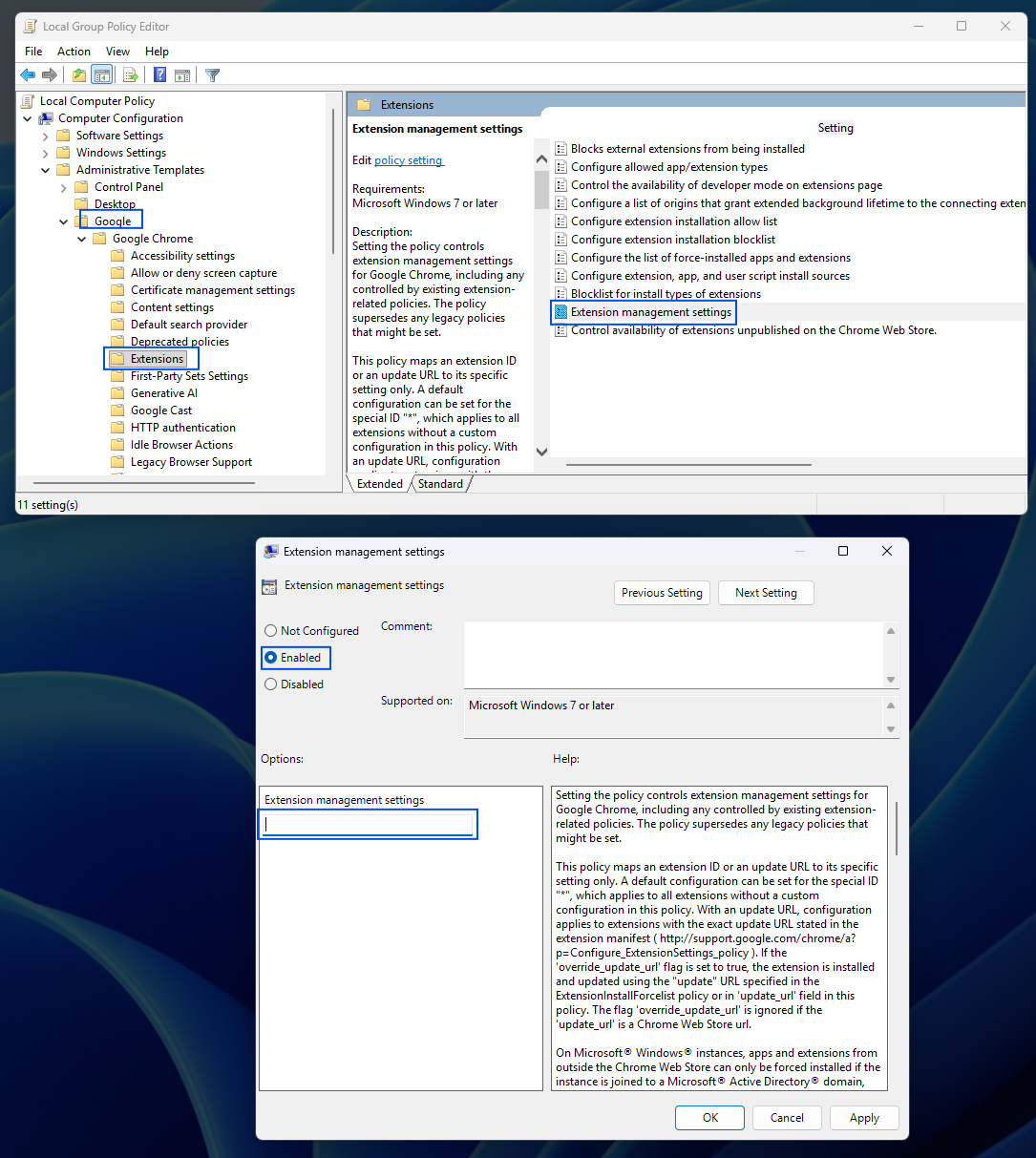
Chrome Group Policy path and Extension management settings policy.
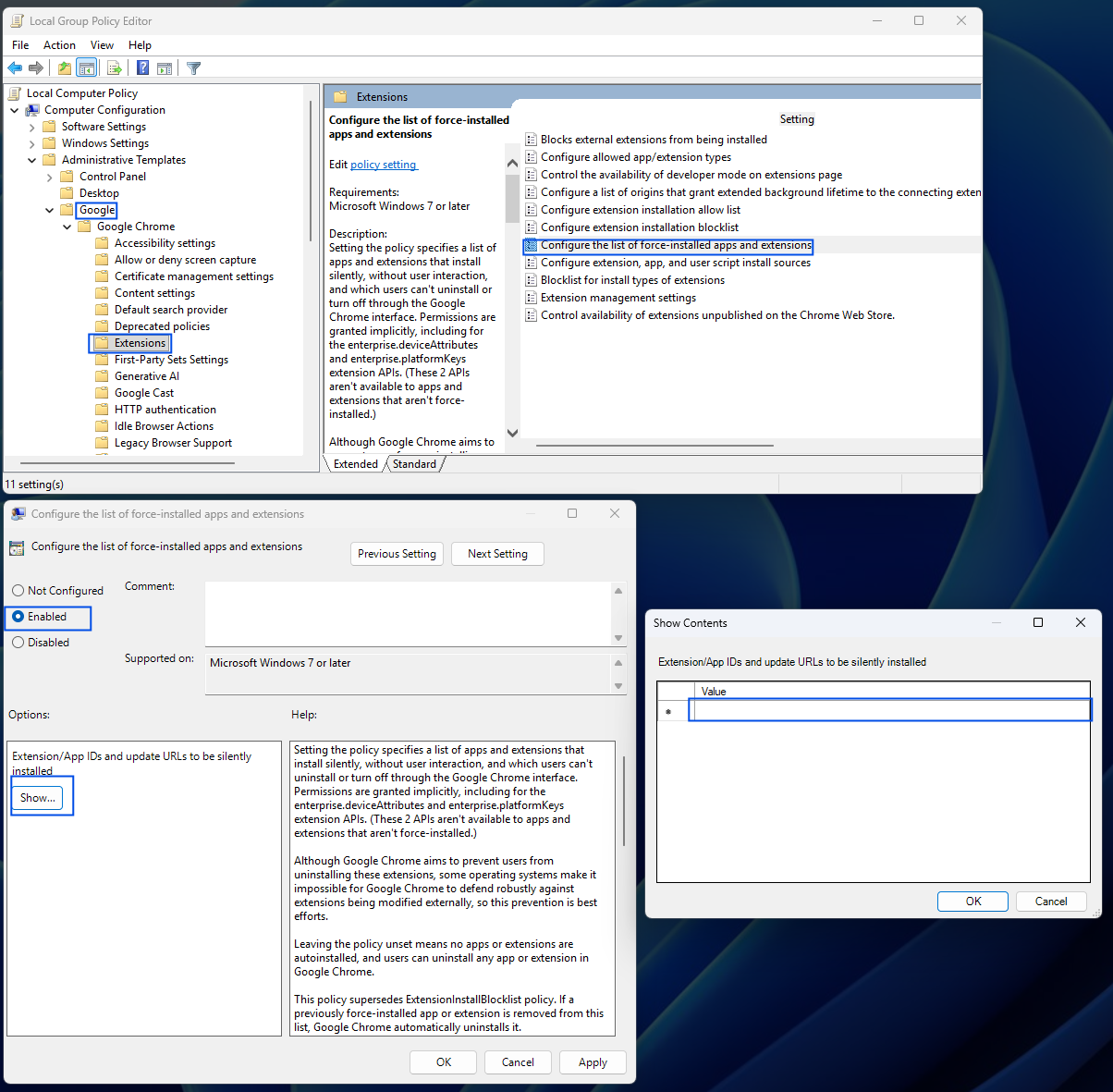
Chrome force-install policy used to supply the extension ID and tenant manifest URL.
For Microsoft Edge, use the equivalent Configure extension management settings and Control which extensions are installed silently policies. Apply the same verified extension ID and tenant manifest URL.
Deploy the native Browser Agent with Group Policy
-
Place the current
QuilrInstaller.exeon a UNC share. Grant Read permission on both the share and NTFS to Domain Computers or the targeted computer group. -
In a computer-linked GPO, open Computer Configuration > Preferences > Control Panel Settings > Scheduled Tasks and create a scheduled task named Install Quilr.
-
Run the task as
NT AUTHORITY\SYSTEMwhether or not a user is logged on, with highest privileges. -
Choose At startup, or use a one-time schedule in the past with Run task as soon as possible after a scheduled start is missed for deployment at the next Group Policy refresh.
-
Set Program/script to the UNC path and Add arguments to
--tenant "<TENANT_ID>". Allow on-demand execution; retry every five minutes for up to three attempts; optionally stop after one hour. -
Link and apply the GPO. Confirm the scheduled task, exit code,
%ProgramFiles%\Quilr, the native messaging process beneath Chrome or Edge, and the installed extension.
GPO failure points: Use a UNC path rather than a local path; confirm the computer account can read the share; review Microsoft-Windows-TaskScheduler/Operational plus System and Application logs; and use item-level targeting when scope must be limited by group or operating system.
Validate deployment
Follow the validation procedure. For task, share, or process failures, use the enterprise diagnostics.