Deploy with Microsoft Intune
Deploy the native Browser Agent package and the tenant-specific extension policy to the same approved device scope. Complete the deployment prerequisites first.
Windows Browser Agent package
-
Download the current
QuilrInstaller.exefrom the approved QuilrAI distribution location and convert it toQuilrInstaller.intunewinwith the Microsoft Win32 Content Prep Tool. -
In Intune, open Apps > All apps > Add and select Windows app (Win32). Upload the intunewin package.
-
Set the install command to
QuilrInstaller.exe --tenant <TENANT_ID>, the uninstall command toQuilrInstaller.exe /uninstall, and Install behavior to System. -
Configure a file detection rule for
C:\Program Files\Quilr AI\QuilrBrowserAgent.exe, or use the current detection rule supplied with the package. -
Assign the app as Required to the approved device group and review App install status after synchronization.
Optional installer switches documented in the supplied MDM guide are --pinned "false" to hide the extension from the toolbar and -skipBrowserExtension to install only the native component. Use optional switches only when they match the approved deployment design.
Windows and macOS extension policy
-
In QuilrAI, open Settings > Browser Extension > Deployment, choose MDM, select Microsoft Intune, then select the browser and operating system.
-
For Windows, download the tenant JSON. In Intune, open Devices > Configuration > Create > Import Policy, upload the JSON, name the policy, save it, and assign the required groups.
-
For macOS, download the tenant mobileconfig. Create a macOS Custom configuration profile, use Device channel, upload the file, and assign the required device groups.
-
Synchronize the device. The browser extension should be force-installed at the next policy refresh and should not be removable by the end user.
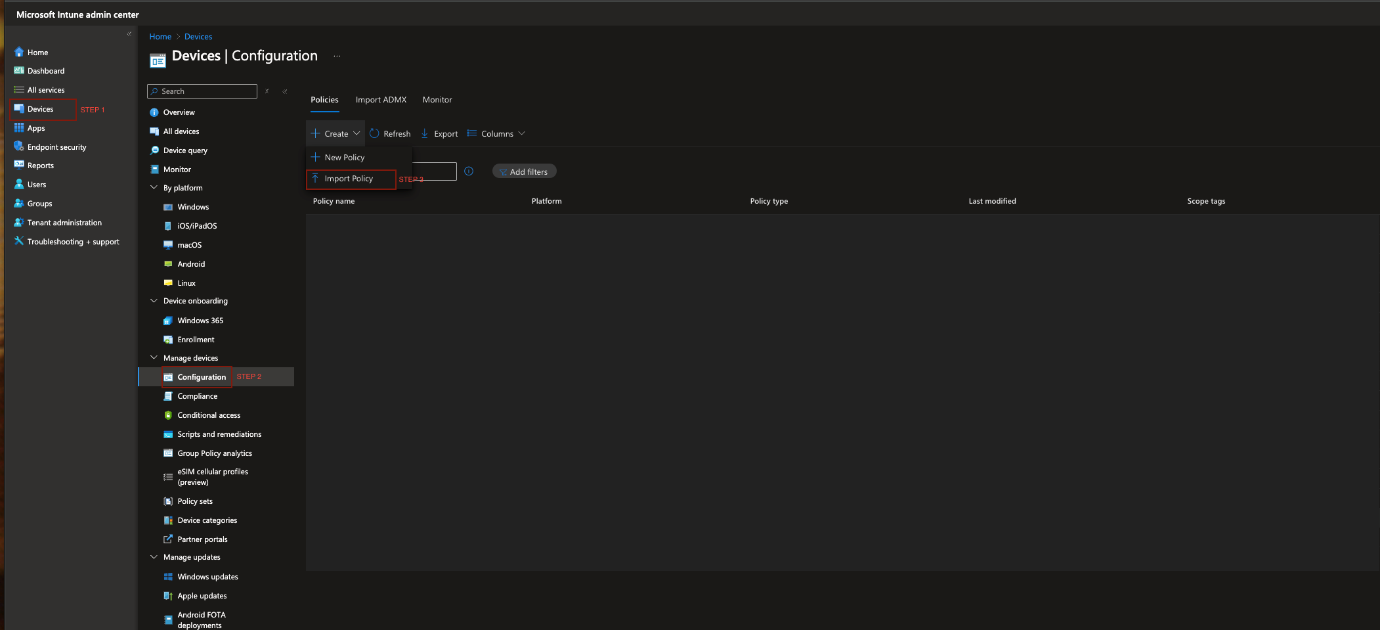
Microsoft Intune Devices > Configuration path and Import Policy action for the tenant JSON.
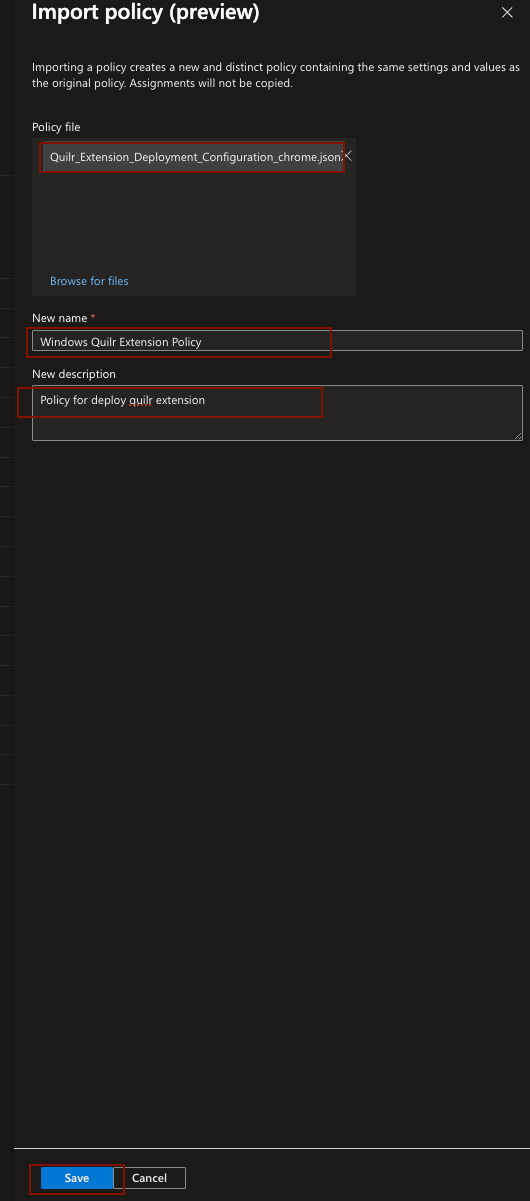
Intune policy import fields for the downloaded QuilrAI browser-extension configuration.
macOS Browser Agent package
-
Select the PKG that matches Apple Silicon or Intel hardware. Use assignment filters when both architectures are present.
-
Before the PKG runs, create
/tmp/agent.confcontainingtenant = <TENANT_ID>. Deploy the script or package pre-install action to the same devices. -
Deploy the QuilrAI Full Disk Access mobileconfig to the device channel before assigning the PKG. This ordering prevents the end-user permission prompt.
-
Add the PKG as a macOS app, set minimum macOS 12.0 or the currently approved requirement, assign the required device groups, and validate application status.
Validate deployment
Follow the validation procedure and compare the installed paths with the current package detection rule. The guide includes package-specific path examples; do not assume they identify the same executable across releases.