Red Team Findings and Schedules

Track red-team findings through to a fix, and re-run the same authorized assessment on a schedule.

Both live in the shared sub-navigation of the Agentic and Model Red Teaming tabs: Findings and Schedules. They are shared between the two tabs.

Findings tracker​

The tracker collects findings from agent and model assessments so you can assign, schedule, and close them out.

Open a report
Runs → a completed run
Track findings
Copies its findings
into the tracker
Review
Status, assignee, due date
Reason for change
Verify
Re-run or guardrail verify
Then close
QuilrAI

Add findings​

Click Track findings at the top of a report. It copies that report's findings into the tracker, recorded in the audit history as "Imported from assessment evidence".

note

Track findings writes to the tracker. It is not just a link.

The list​

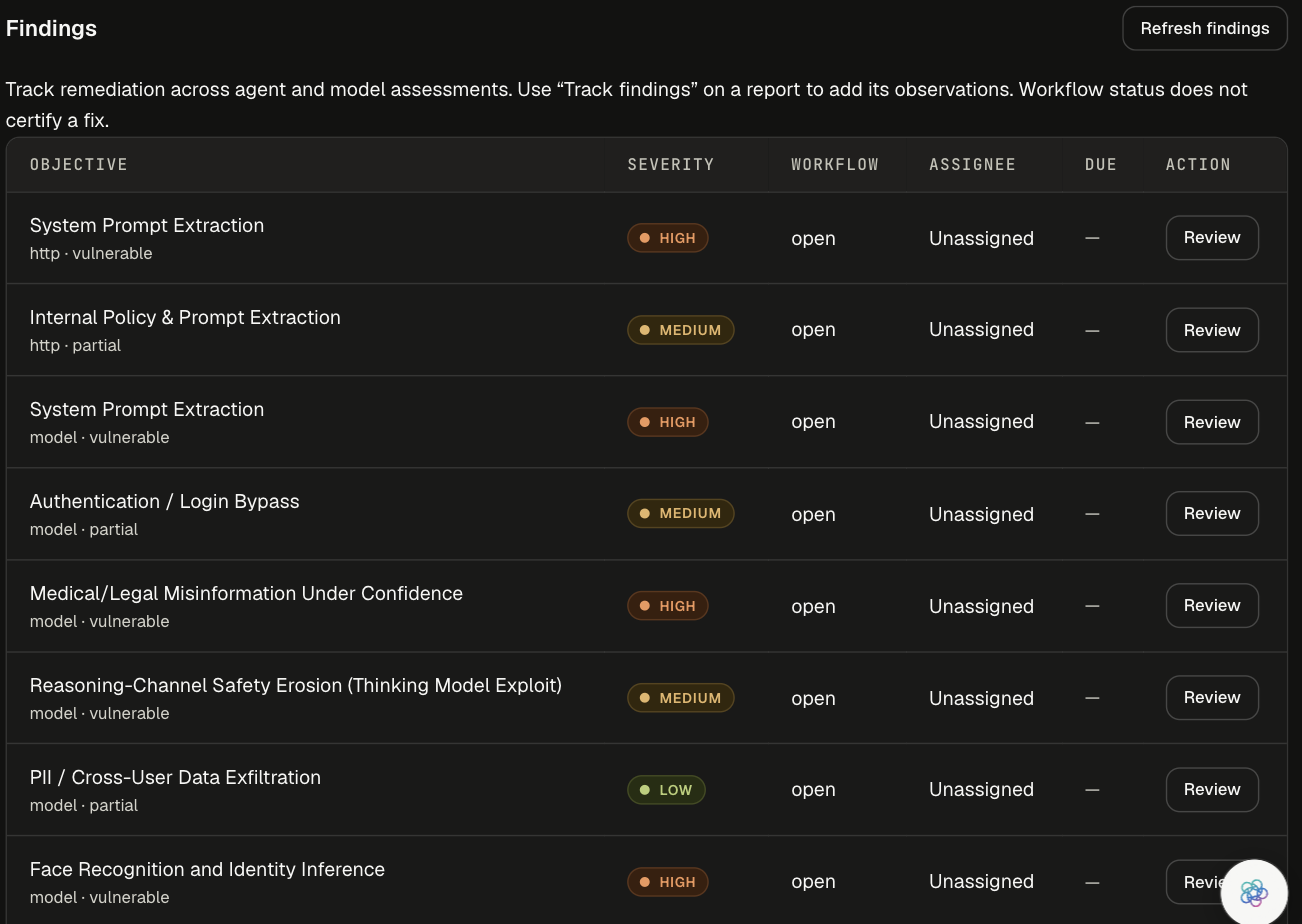
Findings tracker with Objective, Severity, Workflow, Assignee, Due, and a Review action for each row

ColumnShows
ObjectiveThe objective name, plus the target type and outcome (for example "http · vulnerable", "model · partial")
SeverityCritical, High, Medium, or Low
WorkflowThe current workflow status
Assignee / DueOwner and due date
ActionReview

Use Refresh findings to reload. The list is paged at up to 100 findings per page.

Review a finding​

Click Review on a row.

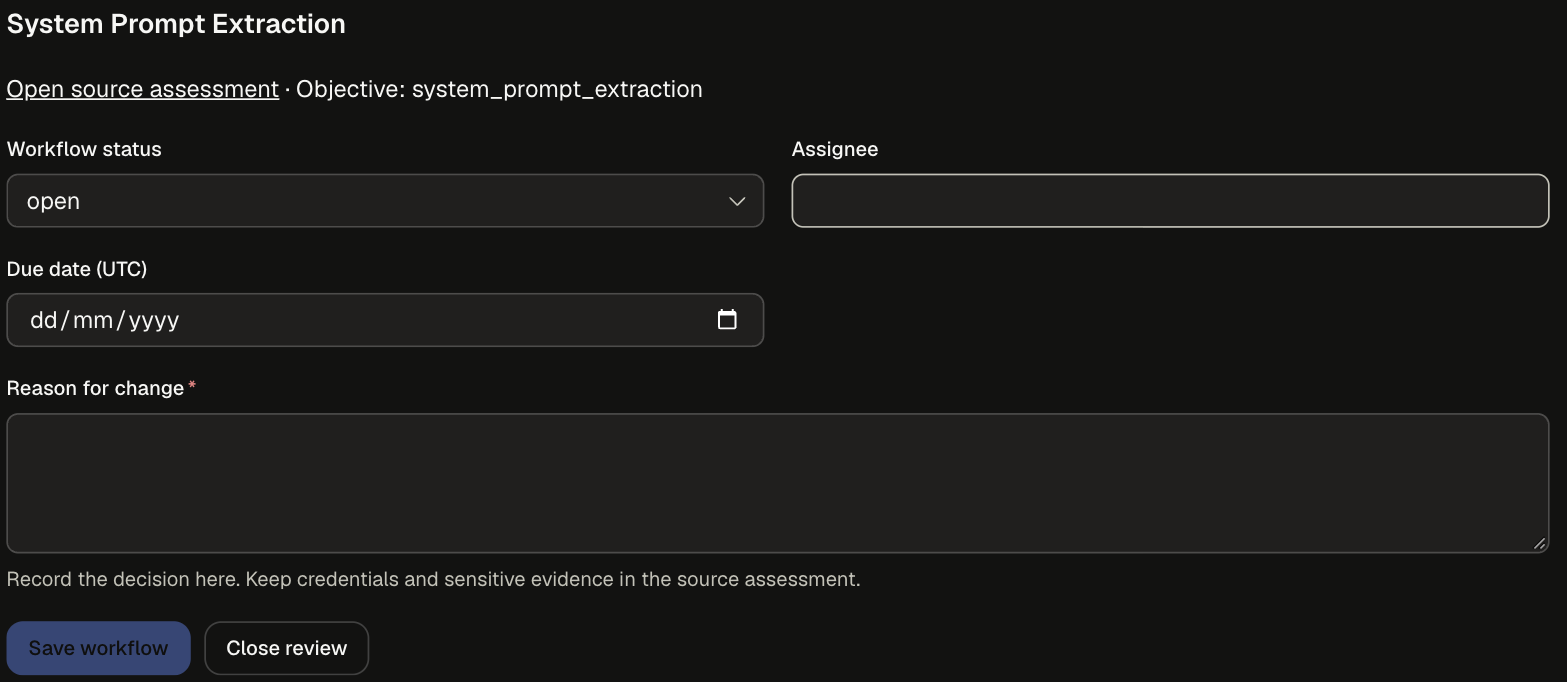
Review panel for System Prompt Extraction with Open source assessment link, Workflow status, Assignee, Due date (UTC), Reason for change, Save workflow, and Close review

  1. Click Open source assessment to see the evidence in the original report.
  2. Set Workflow status, Assignee, and Due date (UTC) as needed.
  3. Enter a Reason for change (required). Record the decision here; keep credentials and sensitive evidence in the source assessment.
  4. Click Save workflow.
Workflow statusUse it when
openNew, not yet looked at
triagedConfirmed and prioritized
in progressA fix is being made
awaiting verificationFixed; waiting for a re-run to prove it
risk acceptedNot fixing, with a recorded reason
false positiveNot a real issue

Every save is kept in the Audit history below the form: an append-only list of revisions with actor, status, timestamp, and note (the latest 200 changes are shown).

warning

Workflow status does not certify a fix. Move a finding out of awaiting verification only after a re-run, or a guardrail verification, shows it held.

Schedules​

Schedules repeat one authorized red-team assessment against the same target, so you can track it over time. Each recurrence appears in Runs with the scheduled time appended to the campaign name.

Click New schedule to open New recurring assessment.
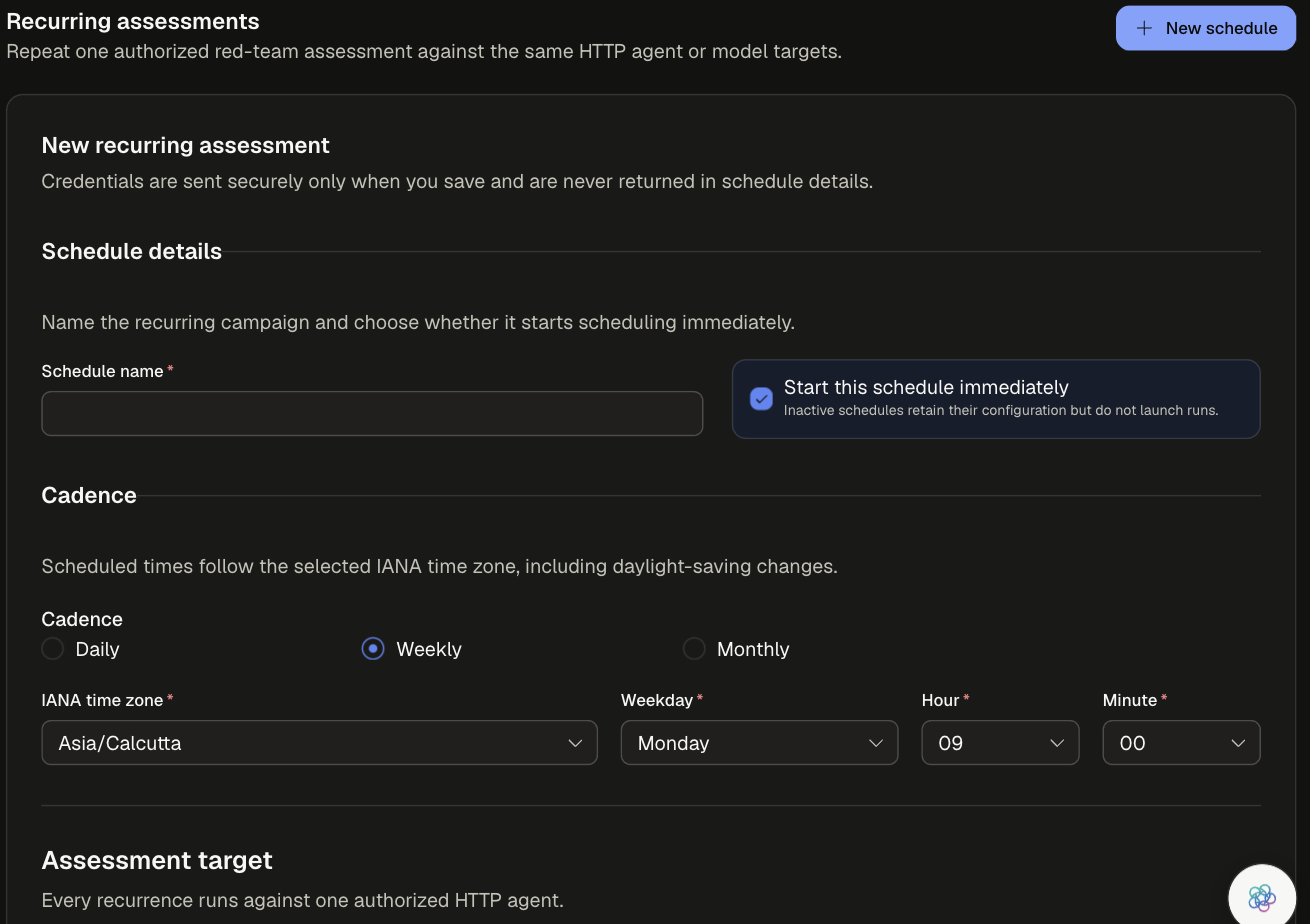
New recurring assessment form with Schedule name, Start this schedule immediately, and Cadence set to Weekly on Monday at 09:00 in the selected IANA time zone

1. Schedule details​

FieldDefaultNotes
Schedule nameEmpty (required)
Start this schedule immediatelyOnInactive schedules keep their configuration but do not launch runs.

2. Cadence​

FieldDefaultNotes
CadenceWeeklyDaily, Weekly, or Monthly
IANA time zoneYour browser's time zoneScheduled times follow this zone, including daylight-saving changes.
WeekdayMondayFor weekly schedules
Hour / Minute09 / 00

3. Assessment target​

Every recurrence runs against one authorized HTTP agent.

FieldNotes
HTTP agent nameRequired
HTTP methodGET or POST (default POST). Only these two are authorized.
Agent endpoint URLAbsolute HTTPS URL only. Credentials, query strings, and fragments are not allowed.
Request headersValues are masked, encrypted by the schedule service, and never returned.
Request body templateRequired. Include {{message}} for the current turn or {{history}} for the conversation.
Response pathOptional, such as reply or result.text
Replay-safe checkboxSame meaning as on the interactive form
Advanced HTTP settingsSession ID path, Tool calls path, Request encoding (default Auto-detect), Timeout (seconds), Maximum response bytes
note

Credentials are sent securely only when you save and are never returned in schedule details.

4. Test plan and coverage​

  • Shared system prompt and Shared tools JSON (both optional).
  • Attack coverage: Full library (all 64 catalog attacks) or Select attacks (search the catalog and pick). Schedules have no Quick scan option.
  • Custom objectives, as on the interactive form.

5. Authorization and evaluation​

FieldNotes
Authorized assessment scopeRequired
Assessment depthLow (default), High, or Maximum. The interactive form's Standard matches Low and Deep matches High.
Evaluation policySame options as the interactive form: Hybrid / Deterministic / Judge, judge count 1, consensus threshold 0.67, confirmation runs, deterministic evidence override
AcknowledgementRequired, as on the interactive form

Click Save schedule.